

Appearance
Timeline Filters
The Timeline Filters function adds custom ordering options to Voxel’s Timeline widget. The first available filter is “Unanswered” which shows posts that have no replies yet.
Overview
Voxel’s Timeline widget includes built-in ordering options like Latest, Most Liked, and Most Discussed. Timeline Filters extends this with additional ordering options that Voxel doesn’t provide out of the box.
Available Filters
- Unanswered – Shows posts with no replies (reply_count = 0), sorted by newest first
More filters may be added in future updates.
Setup Instructions
Step 1: Enable the Function
- Navigate to Voxel Toolkit → Functions in your WordPress admin
- Find Timeline Filters in the list
- Toggle the switch to enable the function
Step 2: Configure Filter Options
- Click the gear icon next to Timeline Filters to open settings
- Check Enable “Unanswered” filter
- Optionally set a custom label (default: “Unanswered”)
- Click Save Changes
Step 3: Enable on Timeline Widget
- Edit your page in Elementor
- Select the Timeline (VX) widget
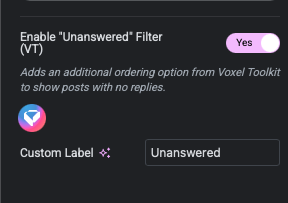
- In the Timeline settings section, find Enable “Unanswered” Filter (VT)
- Toggle it on
- Optionally set a custom label for this specific widget
- Save the page
How It Works
When enabled on a Timeline widget:
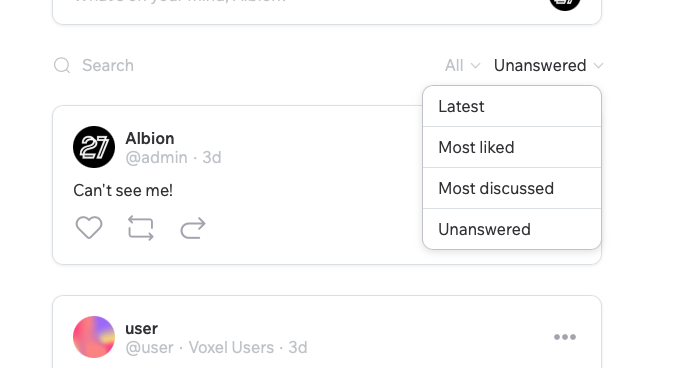
- The “Unanswered” option appears in the ordering dropdown alongside Voxel’s default options
- When selected, posts are filtered to show only those with zero replies
- Results are sorted by newest first
- Pagination works normally with the “Load more” button
Supported Timeline Modes
The Unanswered filter works with all Timeline widget display modes:
- Post Reviews – Shows unanswered reviews on a listing
- Post Wall – Shows unanswered wall posts on a listing
- Post Timeline – Shows unanswered timeline posts from a listing
- Author Timeline – Shows unanswered posts by the profile author
- User Feed – Shows unanswered posts in the logged-in user’s newsfeed
- Global Feed – Shows unanswered posts from sitewide activity
Use Cases
Community Forums
Help community managers quickly find questions that haven’t been answered yet, ensuring no member’s query goes unnoticed.
Support Requests
On listings that function as support tickets or requests, filter to see which ones still need a response.
Review Management
Business owners can find reviews they haven’t responded to yet, improving customer engagement.
Q&A Sections
On listings with Q&A walls, surface unanswered questions so experts can provide answers.
Per-Widget Configuration
The filter can be enabled or disabled on each Timeline widget independently. This allows you to:
- Enable the filter on a community page’s timeline
- Keep it disabled on a listing’s review section
- Use different labels on different pages
Troubleshooting
Filter Not Appearing in Dropdown
- Verify Timeline Filters function is enabled in Toolkit settings
- Check that “Enable Unanswered filter” is checked in function settings
- Ensure the toggle is enabled on the specific Timeline widget in Elementor
- Clear any page caches and hard refresh the browser
No Results When Filtering
- This is normal if all posts have at least one reply
- Try on a timeline that has some posts without replies
Toggle Not Showing in Elementor
- Make sure the function is enabled with the Unanswered filter checked
- Look in the “Timeline settings” section of the widget, not the style tabs
- The control appears at the bottom of the section
Technical Details
The filter queries the Voxel timeline database table with these conditions:
reply_count = 0– Posts with no repliesmoderation = 1– Only approved/published postsrepost_of IS NULL– Original posts only (not reposts)- Sorted by
created_at DESC– Newest first