

Appearance
Table of Contents
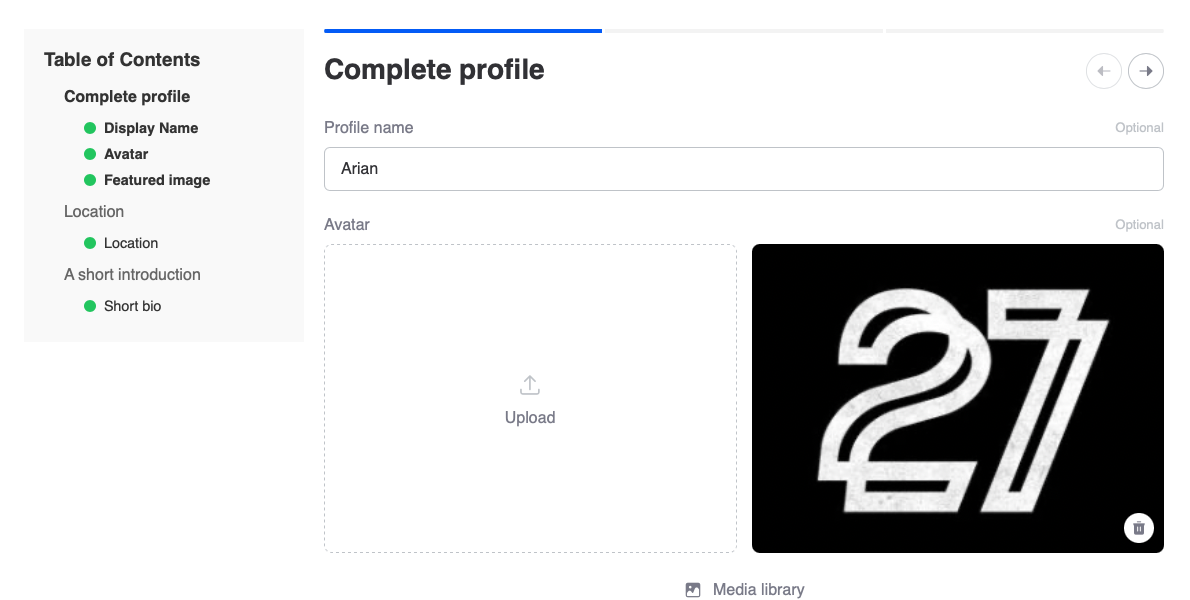
The Table of Contents widget displays a navigation list of Voxel post type form steps. Help users navigate through multi-step submission forms by showing all available sections with optional field completion indicators.
Overview
Create a navigation sidebar for Voxel’s multi-step post submission forms. The widget reads the UI Step fields from your post type configuration and displays them as a clickable list. Users can jump to any step, and optionally see which fields within each step are complete.
Key Features
- Automatic step detection from post type
- Numbered, bullet, or plain list styles
- Optional field list per step
- Field completion indicators
- Active step highlighting
- Elementor widget and shortcode support
- Full styling controls
Setup Instructions
Step 1: Enable the Widget
- Navigate to Voxel Toolkit → Widgets in your WordPress admin
- Find Table of Contents in the list
- Toggle the switch to enable the widget
Step 2: Add to Submit Form Template
- Edit your post submission template in Elementor
- Search for Table of Contents
- Drag the widget to a sidebar position
- Select the post type to show steps for
- Save the template
Widget Settings
Content Settings
| Setting | Description | Default |
|---|---|---|
| Post Type | Which post type’s steps to display | Select from list |
| Title | Heading above the list | “Table of Contents” |
| Show Title | Display the heading | Yes |
| Title Tag | HTML tag for title (H1-H6) | H3 |
| List Style | Numbered, Bullets, or None | Numbered |
| Show Fields | Display fields within each step | No |
Field Display Options
When “Show Fields” is enabled:
| Setting | Description | Default |
|---|---|---|
| Indicator Empty Color | Color for incomplete field indicator | #e0e0e0 |
| Indicator Filled Color | Color for complete field indicator | #22c55e |
| Indicator Size | Size of the indicator dot | 12px |
| Field Indent | Indentation for field list | 20px |
Styling Options
Container
- Background color
- Border color and width
- Border radius
- Padding (all sides)
- Text alignment
Title
- Color
- Typography
List Items
- Color (normal, hover, active)
- Typography
- Item spacing
Shortcode Usage
Use the shortcode for non-Elementor pages:
[voxel_table_of_contents post_type="places" title="Steps" show_title="yes"]Shortcode Parameters
| Parameter | Description | Default |
|---|---|---|
| post_type | Post type key (e.g., “places”) | Required |
| title | Heading text | “Table of Contents” |
| show_title | “yes” or “no” | yes |
| alignment | “left”, “center”, “right” | left |
How It Works
Step Detection
- Finds all fields with type “ui-step”
- Extracts step keys and labels
- Groups non-step fields under each step
Active Step
The current step is determined from the URL’s step parameter. If no step is specified, the first step is marked as active.
Field Completion
When “Show Fields” is enabled, the widget uses JavaScript to check if form fields have values and updates the completion indicators in real-time.
Excluded Field Types
The following UI field types are excluded from the field list:
- ui-step
- ui-heading
- ui-image
- ui-html
Use Cases
Listing Submission Forms
Help users navigate complex multi-step listing submission forms with a sidebar table of contents.
Profile Editing
Show users all sections of their profile with completion status indicators.
Registration Wizards
Display progress through multi-step registration or application forms.
Product Submissions
Guide vendors through product listing steps with clear navigation.
Troubleshooting
No Steps Showing
- Verify post type is selected in widget
- Ensure post type has UI Step fields configured
- Check voxel:post_types option contains data
Wrong Step Active
- Active step is determined by ?step= URL parameter
- First step is active if no parameter present
- Check step key matches the URL value
Field Indicators Not Updating
- JavaScript must be enabled
- Check for console errors
- Verify form fields have matching data attributes