

Appearance
Team Members
The Team Members function allows post authors to invite other users to help manage their listings. Team members can edit posts they’ve been invited to, enabling collaborative listing management.
Overview
Sometimes a listing needs multiple people to manage it – a business with multiple owners, a team managing a property, or staff members helping with updates. The Team Members feature lets post authors invite collaborators by email who can then edit the post as if they owned it.
Key Features
- Team Members post field for managing invites
- Invite collaborators by email
- Configurable invite expiration (default 7 days)
- Accept/decline invitation flow
- Email notifications for invites
- App Events integration
- Elementor visibility rule for team members
Setup Instructions
Step 1: Enable the Function
- Navigate to Voxel Toolkit → Functions in your WordPress admin
- Find Team Members in the list
- Toggle the switch to enable the function
Step 2: Add Field to Post Type
- Go to Voxel → Post Types
- Edit the post type where you want team members
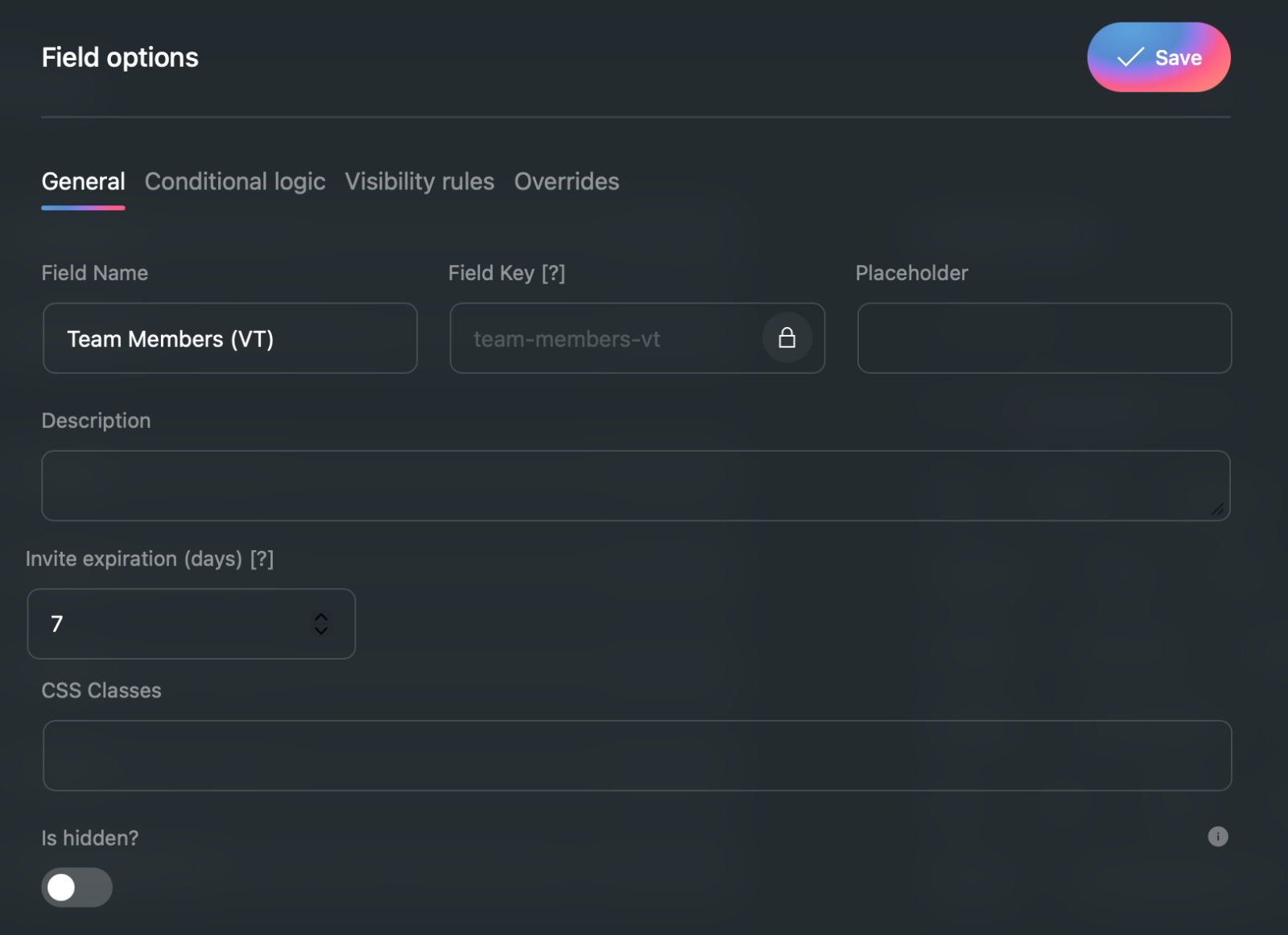
- Add a new field and select Team Members (VT)
- Configure field settings
- Save the post type
Step 3: Configure App Events
- Go to Voxel → App Events
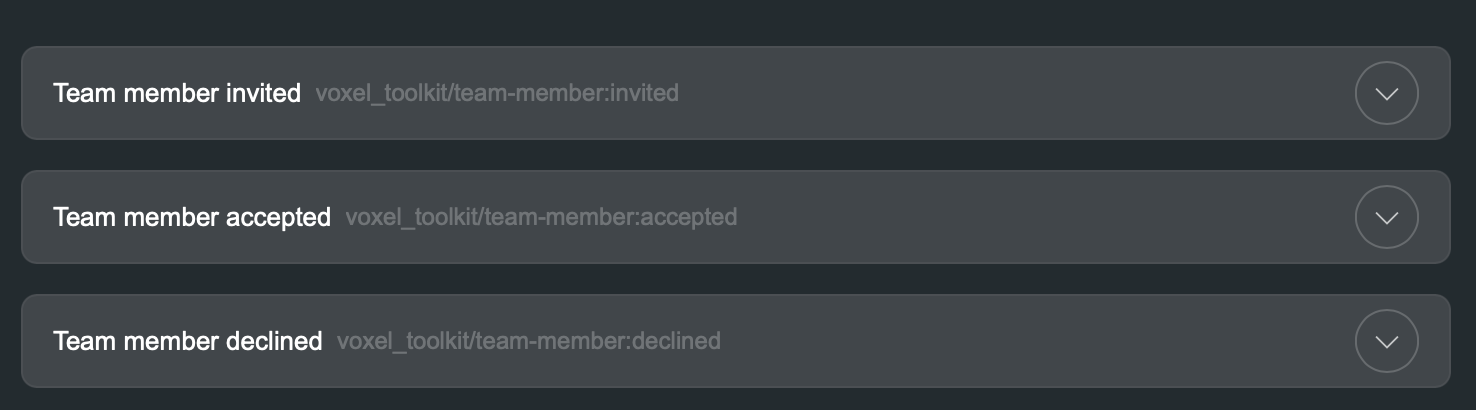
- Find the Team Members events
- Configure email notifications for invites, acceptances, and declines
How It Works
Sending an Invite
- Post author edits their post
- They enter an email address in the Team Members field
- An invitation email is sent to that address
- The invite appears as “Pending” in the field
Accepting an Invite
- Invited user receives email with invitation link
- They click the link and log in (or register)
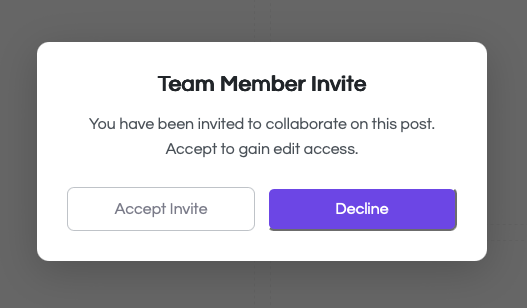
- They see the invitation and click Accept
- They can now edit the post
Declining an Invite
Users can decline invitations, which removes the invite and notifies the post author.
Field Settings
| Setting | Description | Default |
|---|---|---|
| Invite Expiration | How long invites remain valid | 7 days |
| Max Team Members | Maximum number of team members allowed | Unlimited |
App Events
Three app events are added for notifications:
| Event | Triggers When | Use For |
|---|---|---|
| Team Member Invited | Post author sends an invite | Send invite email to recipient |
| Team Member Accepted | Invited user accepts | Notify post author of acceptance |
| Team Member Declined | Invited user declines | Notify post author of decline |
Elementor Visibility Rule
A new visibility rule is added: “User is team member of current post”
Use this to show or hide elements based on whether the current user is a team member of the post. For example:
- Show an “Edit Listing” button only to team members
- Display internal notes visible only to the team
- Show a team member badge on the post

Use Cases
Business Partners
A business with multiple owners can all manage the listing together.
Property Management
Property owners can invite property managers to help update availability and details.
Event Teams
Event organizers can invite team members to help manage event listings.
Staff Access
Business owners can give staff members access to update the business listing.
Permissions
Team members can:
- Edit all fields on the post
- Update media and images
- View the post as if they were the author
Team members cannot:
- Delete the post (only the original author can)
- Invite other team members (only the author can)
- Remove other team members
Troubleshooting
Invite Email Not Received
- Check spam/junk folders
- Verify WordPress is sending emails correctly
- Use an SMTP plugin for reliable delivery
- Check the App Event is configured correctly
Invite Link Not Working
- Check if the invite has expired
- Ensure the user is logged in with the correct email
- Verify the invite hasn’t already been accepted or declined
Team Member Can’t Edit Post
- Verify they accepted the invite (not just received it)
- Check they’re logged in with the email that received the invite
- Ensure the post type has the Team Members field