

Appearance
Saved Search
The Saved Search function lets users save their search filters and quickly reload them later. Users can also receive notifications when new posts match their saved searches.
Overview
Visitors often return to your site looking for the same type of content. With Saved Search, they can save their filter combinations and reload them with one click. Even better, they can opt to receive notifications when new content matches their criteria.
Key Features
- Save Search button in Voxel search form widget
- Saved Search widget displays saved searches in grid layout
- Load Search dropdown for quick filter application
- Auto-apply option for returning visitors
- Notifications for new matching posts
- Per-search notification preferences
- localStorage persistence
Setup Instructions
Step 1: Enable the Function
- Navigate to Voxel Toolkit → Functions in your WordPress admin
- Find Saved Search in the list
- Toggle the switch to enable the function
Once enabled, the Save Search button will automatically appear in Voxel’s search form widget.
Step 2: Add Saved Search Widget (Optional)
To display saved searches on user profile or account pages:
- Edit the page in Elementor
- Add the Saved Search (VT) widget
- Configure grid layout and styling
- Save the page
- Go into the Function settings and set the saved search page there as well.
Save Search Button
The button appears in the Voxel search form when filters are active.
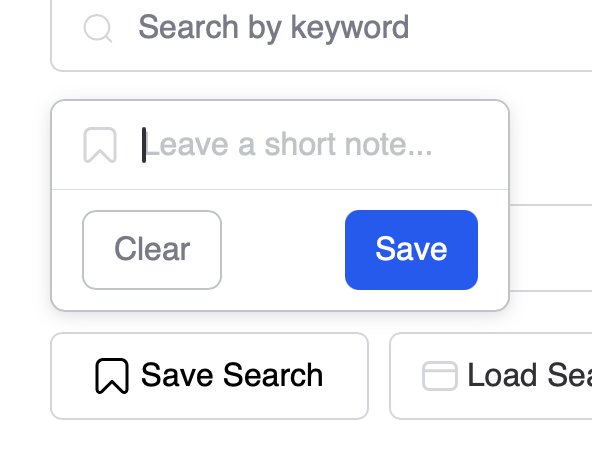
Saving a Search
- User applies search filters
- User clicks the Save Search button
- A popup appears to name the search
- User can enable/disable notifications
- Search is saved to their account
Load Search Dropdown
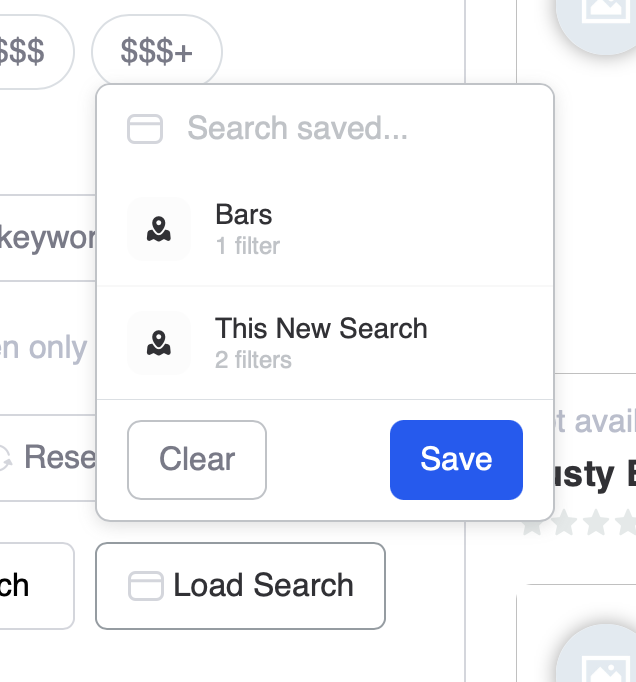
A dropdown in the search form lets users quickly apply saved searches:
- Lists all saved searches for this search form
- One-click to apply all filters from that search
- Shows filter summary for each saved search
Saved Search Widget
Displays all saved searches in a grid layout.
Widget Features
- Grid layout with configurable columns
- Search name and filter summary
- Click to go to search with filters applied
- Delete button to remove saved searches
- Notification toggle per search

Auto-Apply Feature
Users can set a saved search to auto-apply when they return to the search page:
- Enable auto-apply on a saved search
- When they visit the search page, those filters are automatically applied
- Only one search can be set to auto-apply at a time
- Uses localStorage for persistence across sessions
Notifications
When new posts match a user’s saved search, they can receive notifications:
Notification Types
- In-App – Notification appears in Voxel’s notification system
- Email – Email sent to the user
- SMS – Text message (if SMS Notifications enabled)
Configuring Notifications
- Go to Voxel → App Events
- Find Saved Search: New Match per post type
- Configure email template and delivery options
User Controls
Users can enable or disable notifications per saved search:
- Toggle in the save dialog when creating
- Toggle in the Saved Search widget
- Notifications are off by default
Email preview card
Notification emails render a preview card for the matched listing — image, title, a short blurb and a link — rather than a line of text.
Because Voxel configures notification templates per post type, each type's email can pull its own fields, including price, by editing that template.
Two dynamic tags supply the parts that Voxel's standard tags can't express:
| Tag | Resolves to |
|---|---|
@preview(image) | The best available image — featured image, then logo, then the first populated image field — at an email-appropriate size rather than the full-size upload |
@preview(excerpt) | The post text, stripped and trimmed to a card-sized blurb |
Both are filterable via voxel_toolkit/saved_search/preview_image_size and voxel_toolkit/saved_search/preview_excerpt_words.
A listing missing an image or text collapses that part of the card rather than emailing a broken image or an empty paragraph.
Existing customised templates are untouched
If you've already edited a saved search email template, yours is kept. Reset it to the default to pick up the card.
Use Cases
Job Seekers
Save search filters for jobs in their field and location, get notified when new jobs are posted.
Property Hunters
Save searches for properties in their price range and preferred neighborhoods.
Marketplace Buyers
Save searches for specific products or categories they’re interested in.
Event Attendees
Save searches for events in their area or of specific types.
Storage
Saved searches are stored in:
- Logged-in users – Database (syncs across devices)
Troubleshooting
Save Button Not Appearing
- Check that the function is enabled
- Apply at least one filter first (button shows when filters are active)
- Verify you’re using Voxel’s search form widget
Saved Searches Not Persisting
- For guests, check localStorage is enabled
- Try logging in to save searches to your account
- Check browser privacy settings
Notifications Not Working
- Verify notifications are enabled on the saved search
- Check App Event is configured in Voxel
- Verify WordPress is sending emails