

Appearance
Previous and Next Widget
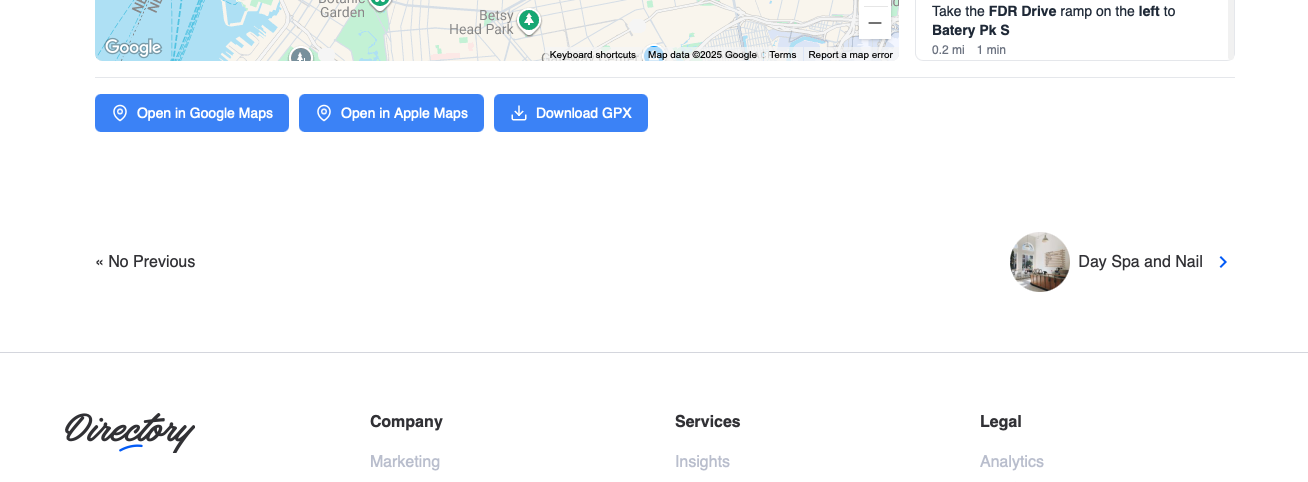
The Previous/Next Navigation widget adds navigation links to browse between posts in chronological order. Help visitors discover more content by making it easy to move to the next or previous post.
Overview
Add previous and next post navigation to any single post template. The widget automatically detects adjacent posts and displays navigation links with customizable layout and styling options.
Key Features
- Automatic detection of adjacent posts
- Row or column layout options
- Responsive design controls
- Optional placeholder text when no posts exist
- Full styling customization
- Works with any Voxel post type
Setup Instructions
Step 1: Enable the Widget
- Navigate to Voxel Toolkit → Widgets in your WordPress admin
- Find Previous/Next Navigation in the list
- Toggle the switch to enable the widget
Step 2: Add to Template
- Edit your single post template in Elementor
- Search for Previous/Next Navigation (VT)
- Drag the widget to the bottom of your template (or desired location)
- Configure layout and styling
- Save the template
Widget Settings
Content Settings
| Setting | Description | Default |
|---|---|---|
| Show Placeholders | Show “No Previous” or “No Next” when no adjacent post exists | Yes |
Layout Options
| Setting | Description | Options |
|---|---|---|
| Direction | Layout direction (responsive) | Row, Column |
| Justify | Horizontal alignment | Start, Center, Space Between, End |
| Item Width | Width of each navigation item | Auto, Full Width |
Styling Options
Customize the appearance with Elementor’s style controls:
- Background colors
- Text colors and typography
- Padding and spacing
- Border and border radius
- Hover states
- Arrow/icon styling
Layout Examples
Side by Side
Direction: Row, Justify: Space Between – Previous on left, Next on right.
Stacked
Direction: Column – Previous on top, Next below.
Centered
Direction: Row, Justify: Center – Both links centered together.
Use Cases
Blog Posts
Help readers navigate through blog articles chronologically.
Portfolio Items
Let visitors browse through portfolio pieces one at a time.
Listings
Allow users to browse through listings without returning to search results.
Tutorials
Guide users through a series of tutorial posts in order.
Troubleshooting
Links Not Appearing
- Check that adjacent posts exist
- Verify posts are published (not draft)
- Check if “Show Placeholders” is disabled and no posts exist
Wrong Post Order
- Navigation follows WordPress chronological order (by publish date)
- Posts are ordered within the same post type
Layout Issues on Mobile
- Use responsive controls to set different layouts per device
- Consider Column layout on mobile for better readability
Requirements
- At least 2 published posts of the same type