

Appearance
Promotion Create Form
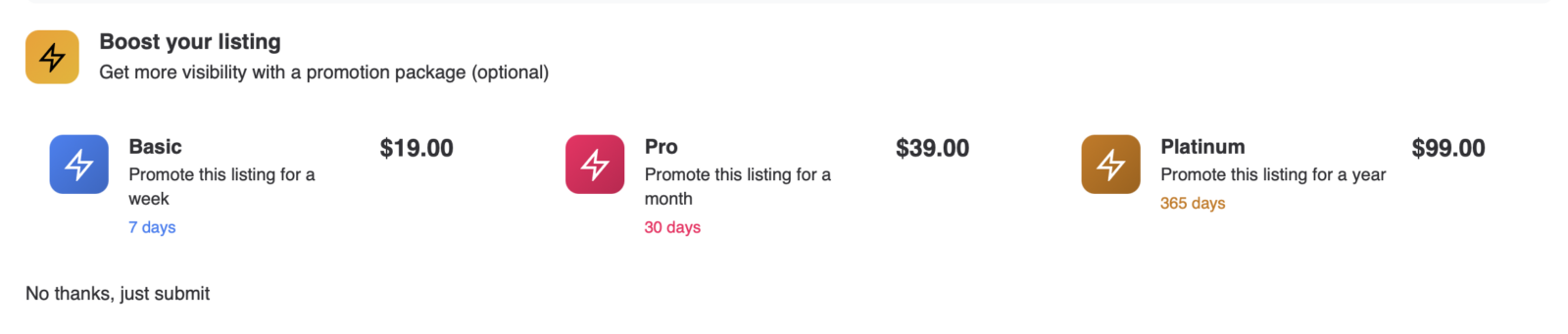
The Promotion Create Form function adds promotion package selection to Voxel’s Create Form widget. Users can optionally select a promotion package before submitting their post, then get redirected directly to checkout after submission.
Overview
When users create a new listing, they often want to promote it immediately for better visibility. This function streamlines the process by presenting promotion packages right in the Create Form, eliminating the need for users to navigate to a separate promotion page after publishing.
Key Features
- Display promotion packages on the last step of the Create Form
- Packages automatically filtered by post type
- Optional selection – users can skip if they don’t want to promote
- Direct checkout integration via Voxel’s payment system
- Automatic redirect to payment after post submission
- Customizable section title, description, and skip button text
- Styling matches Voxel’s native form design
Setup Instructions
Step 1: Enable the Function
- Navigate to Voxel Toolkit → Functions in your WordPress admin
- Find Promotion Create Form in the list
- Toggle the switch to enable the function
Step 2: Configure Promotion Packages in Voxel
Before using this function, you need to have promotion packages configured in Voxel:
- Go to Voxel → Paid Listings → Settings → Promoted Listings
- Create one or more promotion packages
- For each package, configure:
- Label and description
- Price
- Duration (days, weeks, or months)
- Priority level
- Applicable post types
- Optional accent color and icon
- Save your promotion settings
Step 3: Enable in Create Post Widget
- Edit the page containing your Create Post widget in Elementor
- Select the Create Post (VX) widget
- In the widget settings, find the Promotions (VT) section
- Toggle Enable Promotions to Yes
- Customize the section title, description, and skip button text (optional)
- Save and publish the page
User Flow
Here’s what happens when a user creates a post with promotions enabled:
- Fill Out Form – User completes all steps of the Create Post form
- View Promotions – On the last step, before the submit button, available promotion packages are displayed
- Select or Skip – User can click a package to select it, or click “No thanks, just submit” to skip
- Submit Form – User clicks the submit button to create the post
- Redirect to Payment – If a promotion was selected, user is automatically redirected to the Stripe checkout page
- Complete Payment – User completes payment and the promotion is applied to their new post
Widget Settings
| Setting | Description | Default |
|---|---|---|
| Enable Promotions | Toggle to show/hide promotion packages on the form | No |
| Section Title | Heading text above the promotion packages | “Boost your listing” |
| Section Description | Subheading text explaining the promotion option | “Get more visibility with a promotion package (optional)” |
| Skip Button Text | Text for the link to skip promotion selection | “No thanks, just submit” |
Package Display
Each promotion package card displays:
- Icon – Lightning bolt icon (or custom icon if configured in Voxel)
- Label – Package name (e.g., “Basic”, “Pro”, “Premium”)
- Description – Brief explanation of the package benefits
- Duration – How long the promotion lasts (e.g., “7 days”, “1 month”)
- Price – Cost of the promotion
- Accent Color – Custom color from Voxel package settings
When a package is selected, it displays a checkmark and highlighted border using the package’s accent color.
Post Type Filtering
Packages are automatically filtered based on the post type being created. If you configure a promotion package to only apply to “Places” in Voxel, it will only appear on the Create Post form for Places – not for Events, Profiles, or other post types.
If a post type has no applicable promotion packages configured, the promotion section will be hidden automatically.
Use Cases
Business Directory
When businesses create their listing, offer them immediate promotion options to appear at the top of search results.
Job Board
Let employers boost their job postings right when they create them to attract more applicants quickly.
Real Estate
Property listings can be promoted immediately upon creation to get more visibility during the critical first days on market.
Marketplace
Sellers can promote their products right when listing them, increasing the chance of quick sales.
Troubleshooting
Promotion Section Not Showing
- Verify the function is enabled in Voxel Toolkit settings
- Check that “Enable Promotions” is toggled on in the widget settings
- Ensure promotion packages exist in Voxel → Products → Promotions
- Confirm at least one package is configured for the current post type
- Clear any caching and refresh the page
Not Redirecting to Checkout
- Ensure Stripe is properly configured in Voxel
- Check that the user is logged in (promotions require authentication)
- Verify the post was created successfully before the redirect
- Check browser console for any JavaScript errors
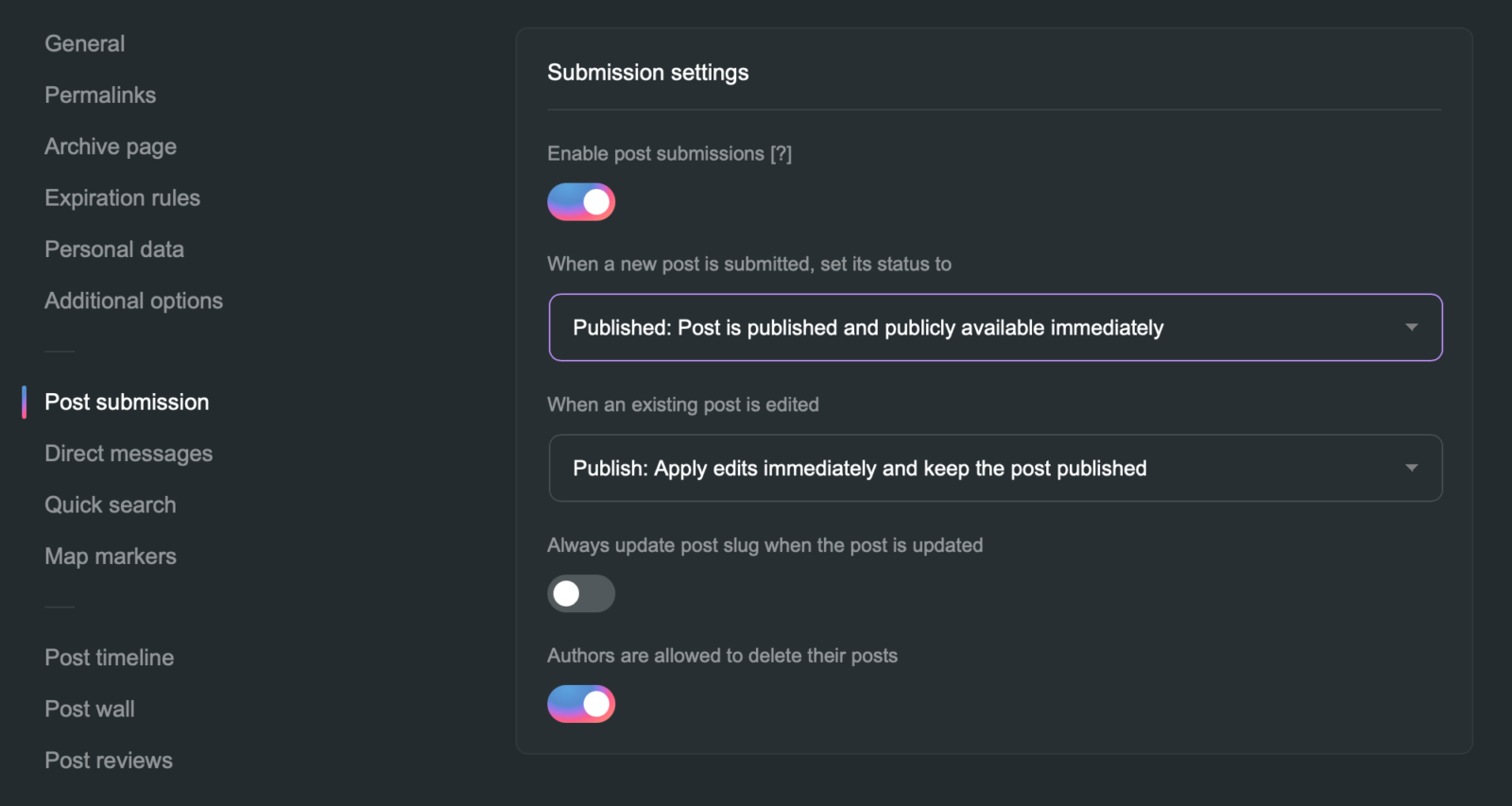
- Ensure that the post submission for the post type is set to Published and not Pending
Packages Showing “Loading…”
- This indicates the AJAX request to fetch packages is still running or failed
- Check browser console for AJAX errors
- Verify your site’s AJAX functionality is working correctly
Requirements
- At least one promotion package configured