

Appearance
Active Filters
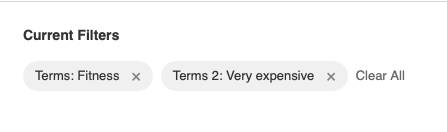
The Active Filters widget displays currently applied search filters as removable tags. Users can see what filters are active and easily remove them to refine their search results.
Overview
Parse URL parameters and display them as visual filter tags. Each tag shows what filter is applied and can be clicked to remove it. Includes a “Clear All” button to reset all filters at once. Perfect for search result pages with multiple filter options.
Key Features
- Automatic URL parameter parsing
- Click-to-remove filter tags
- Clear all filters button
- Voxel filter label integration
- Range value formatting (0..300 → $0 – $300)
- Horizontal or vertical layout
- Hide when no filters applied
- Preview mode for editor styling
Setup Instructions
Step 1: Enable the Widget
- Navigate to Voxel Toolkit → Widgets in your WordPress admin
- Find Active Filters in the list
- Toggle the switch to enable the widget
Step 2: Add to Search Page
- Edit your search results template in Elementor
- Search for Active Filters (VT)
- Drag the widget above your search results
- Enable “Show Preview” to style in the editor
- Save the template
Widget Settings
General Settings
| Setting | Description | Default |
|---|---|---|
| Show Preview | Display placeholder filters in editor | No |
| Heading | Optional heading above filters | Empty |
| Layout | Horizontal or Vertical | Horizontal |
| Hide When No Filters | Hide widget when no filters active | Yes |
| Empty State Message | Text when no filters (if not hidden) | Empty |
Filter Display
| Setting | Description | Default |
|---|---|---|
| Hide Post Type Filter | Don’t show the “type” parameter | Yes |
| Hide Sort Filter | Don’t show the “sort” parameter | No |
| Exclude Parameters | Comma-separated list to hide | Empty |
| Remove Icon | Icon style for remove button | × (Times) |
Clear All Button
| Setting | Description | Default |
|---|---|---|
| Show Clear All | Display clear all button | Yes |
| Clear All Text | Button text | “Clear All” |
| Clear All Position | Before or After filters | After |
Filter Labels
| Setting | Description | Default |
|---|---|---|
| Show Filter Name | Display filter name with value | Yes |
| Keywords Label | Label for search keywords | “Search” |
| Sort Label | Label for sort filter | “Sort” |
| Range Separator | Text between range values | ” – “ |
Styling Options
Heading
- Color and typography
- Bottom spacing
- Alignment
Filter Tags
- Background color (normal and hover)
- Text color (normal and hover)
- Typography
- Padding
- Border radius
- Border
- Box shadow
Remove Icon
- Icon color (normal and hover)
- Icon size
- Icon spacing
Clear All Button
- Text color (normal and hover)
- Background color (normal and hover)
- Typography
- Padding and border radius
Layout
- Gap between tags
- Widget alignment
- Container background and border
- Container padding and margin
Value Formatting
The widget automatically formats values for better readability:
Range Values
URL: ?price=0..300
Display: Price: 0 - 300
Multiple Terms
URL: ?category=apartments,houses
Display: Category: Apartments, Houses
Boolean Values
URL: ?featured=1
Display: Featured: Yes
Yes/No is only used for filters that really are on/off toggles — switchers, "open now", and the follow filters. The widget asks Voxel what kind of filter each one is, so a numeric filter set to 1 keeps its number:
URL: ?f_seats=1
Display: Number of seats: 1
Fixed in 1.9.2
Before 1.9.2 any filter value of 1 was displayed as "Yes", so a numeric filter set to 1 read "Number of seats: Yes".
Use Cases
Property Search
Show active price range, location, and amenity filters with one-click removal.
Job Board
Display selected job type, location, and salary filters for easy refinement.
E-commerce
Show category, brand, and price filters on product listing pages.
Directory Listings
Display location, category, and rating filters for business directories.
Troubleshooting
Filters Not Showing
- Check URL has query parameters
- Verify parameters aren’t in exclude list
- Disable “Hide When Empty” temporarily
- Enable “Show Preview” in editor
Wrong Filter Labels
- Widget reads labels from Voxel post type config
- Check filter labels in Voxel → Post Types
- Use widget label settings to override
Remove Not Working
- Widget uses standard URL navigation
- Check for JavaScript errors in console
- Verify links are not being blocked