Appearance
Messenger
The Messenger widget adds a floating chat interface to your site. Users can view their conversations, send messages, and receive notifications – all without leaving the current page.
Overview
Integrate Voxel’s messaging system as a floating messenger that stays accessible across your site. The widget displays a chat icon that opens a conversation list, with individual chat windows for active conversations. Includes real-time message polling and notification support.
Key Features
- Floating chat button
- Conversation list with search
- Multiple open chat windows
- Unread message indicators
- Real-time message polling
- Auto-open new incoming chats
- Listing context display
- Minimized chat management
Setup Instructions
Step 1: Enable the Widget
- Navigate to Voxel Toolkit → Widgets in your WordPress admin
- Find Messenger in the list
- Toggle the switch to enable the widget
Step 2: Configure Settings
- Navigate to Voxel Toolkit → Messenger
- Configure default avatar and other options
- Save the settings
Step 3: Add to Site
- Edit your site template in Elementor
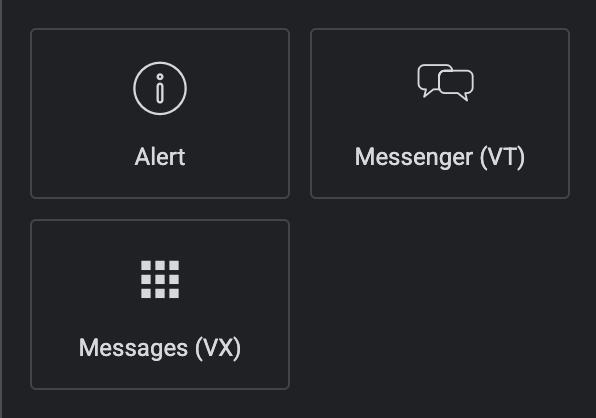
- Search for Messenger (VT)
- Drag the widget to your layout
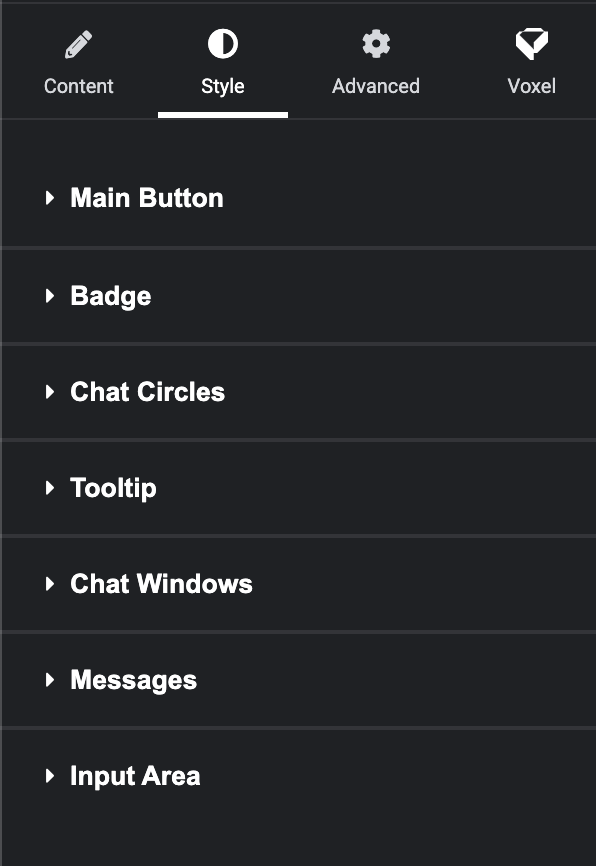
- Configure button position and styling
- Save the template
Widget Settings
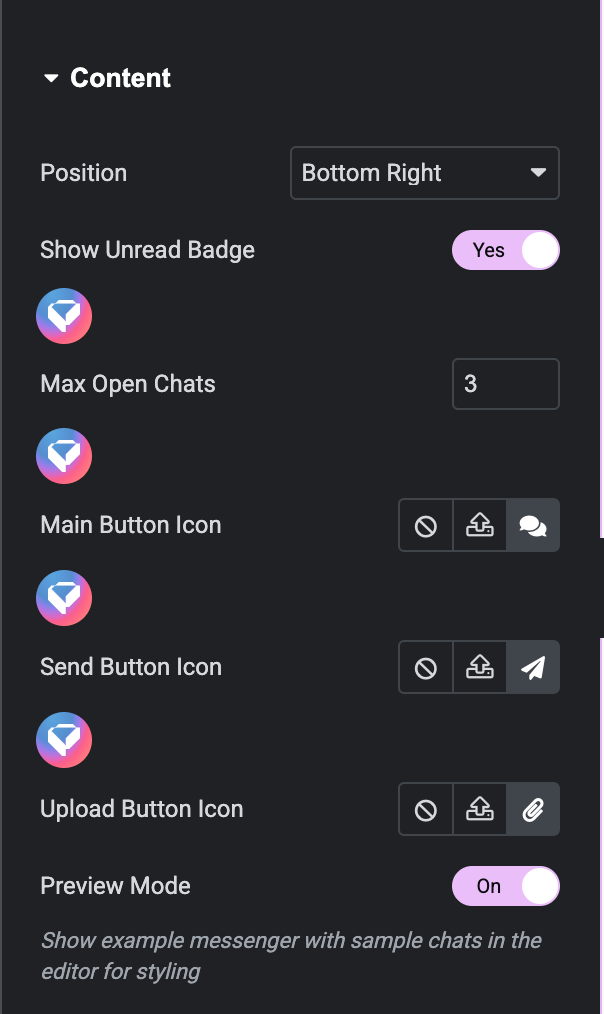
Button Settings
| Setting | Description | Default |
|---|---|---|
| Button Icon | Icon for the chat button | Chat bubble |
| Button Position | Bottom left or bottom right | Bottom Right |
| Button Size | Size of the floating button | 56px |
| Offset X | Horizontal offset from edge | 20px |
| Offset Y | Vertical offset from bottom | 20px |
Behavior Settings
| Setting | Description | Default |
|---|---|---|
| Max Open Chats | Maximum simultaneous chat windows | 3 |
| Polling Frequency | How often to check for new messages | 30 seconds |
| Auto-Open New | Automatically open new incoming chats | Yes |
Styling Options
Chat Button
- Background color (normal and hover)
- Icon color
- Border radius
- Box shadow
Unread Badge
- Background color
- Text color
- Size and position
Chat Windows
- Window dimensions
- Header styling
- Message bubble colors
- Input field styling
Interface Elements
Conversation List
- Search field to find conversations
- User avatars and names
- Last message preview
- Unread indicator dots
- Empty state message
Chat Window
- Header with user name and close/minimize buttons
- Message history with timestamps
- Listing context display (“Reply as [listing name]”)
- Message input field
- Send button
Minimized Chats
- Compact avatar display
- Click to restore chat window
- Stack horizontally from main button
Text Customization
The following text strings can be translated/customized:
| Text | Default Value |
|---|---|
| Search placeholder | “Search messages…” |
| No chats message | “No conversations yet” |
| Input placeholder | “Type a message…” |
| Reply as format | “Reply as %s” |
| Send button | “Send” |
| New message | “New message” |
| Minimize button | “Minimize” |
| Close button | “Close” |
Use Cases
Marketplace Communication
Allow buyers and sellers to communicate about listings without leaving the page.
Service Booking
Enable quick communication between service providers and customers.
Community Platform
Provide easy access to direct messaging between community members.
Customer Support
Let users message site admins for support from any page.
Troubleshooting
Messages Not Loading
- Check user is logged in
- Verify AJAX requests aren’t blocked
- Check browser console for JavaScript errors
- Verify nonce is valid
Button Not Appearing
- Widget only shows for logged-in users
- Check widget is enabled in Toolkit settings
- Verify CSS isn’t hiding the button
New Messages Not Detected
- Polling runs every 30 seconds by default
- Check for AJAX errors in console
- Ensure concurrent request protection isn’t blocking
Requirements
- Voxel messaging system enabled
- Users must be logged in
Screenshots