

Appearance
Social Proof
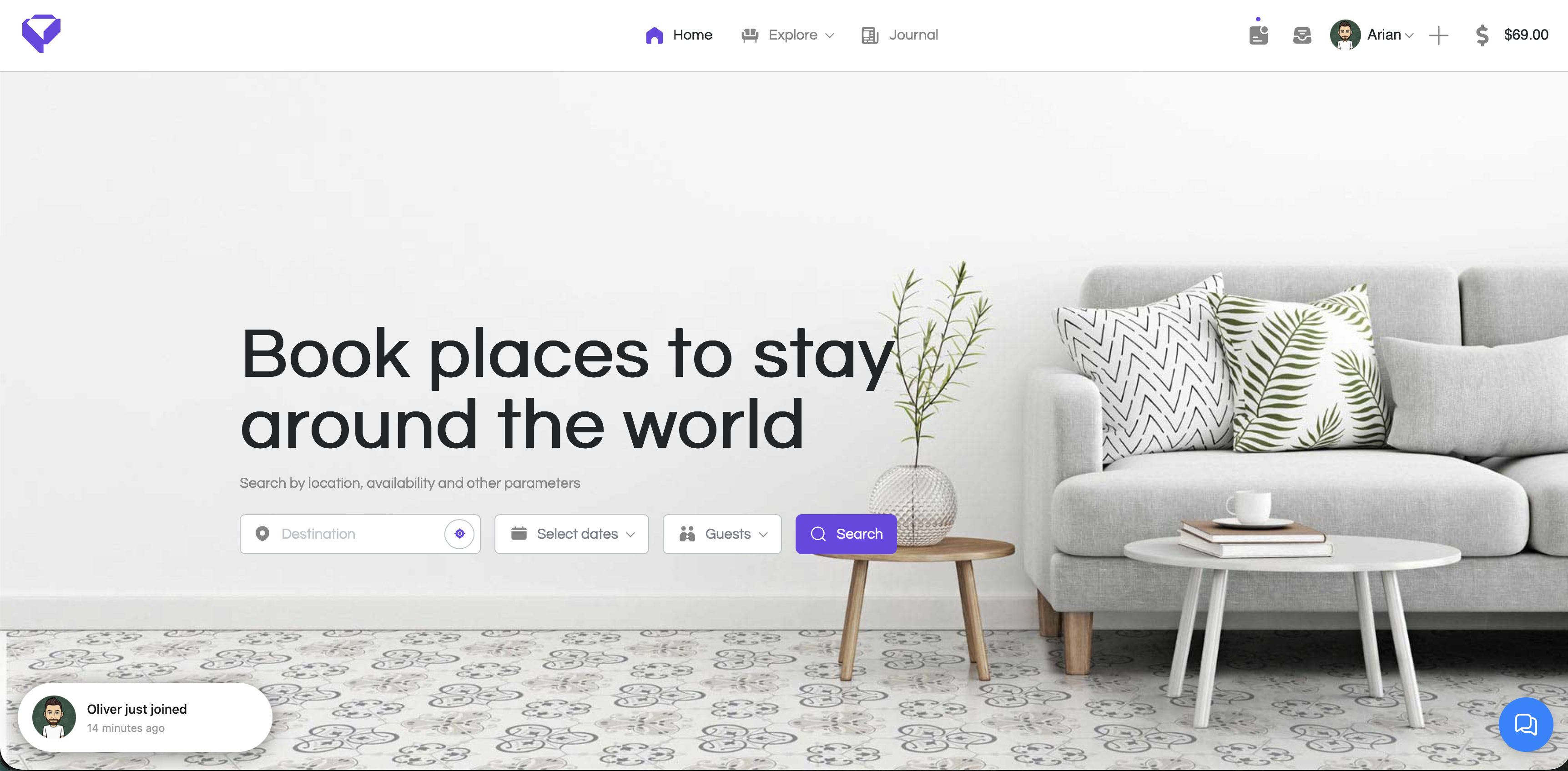
The Social Proof function displays toast notifications showing recent activity on your site. When visitors see bookings, signups, purchases, and reviews happening in real-time, it builds trust and encourages them to take action.
Overview
Social proof notifications are the small popup messages you see on websites saying things like “John just booked a room” or “Sarah left a 5-star review.” These notifications show visitors that your site is active and trusted by real people, which can significantly increase conversions.
Key Features
- Capture real Voxel app events (bookings, orders, signups, reviews, posts)
- Auto-rotate through recent events with customizable timing
- Poll for new events without page refresh
- Activity Boost mode for slower periods
- Position in any of the 4 corners of the screen
- Full color, animation, and style customization
- Message templates with placeholders
- Live preview in settings
Setup Instructions
Step 1: Enable the Function
- Navigate to Voxel Toolkit → Functions in your WordPress admin
- Find Social Proof in the list
- Toggle the switch to enable the function
Step 2: Configure Settings
After enabling, click the settings icon next to Social Proof to configure:
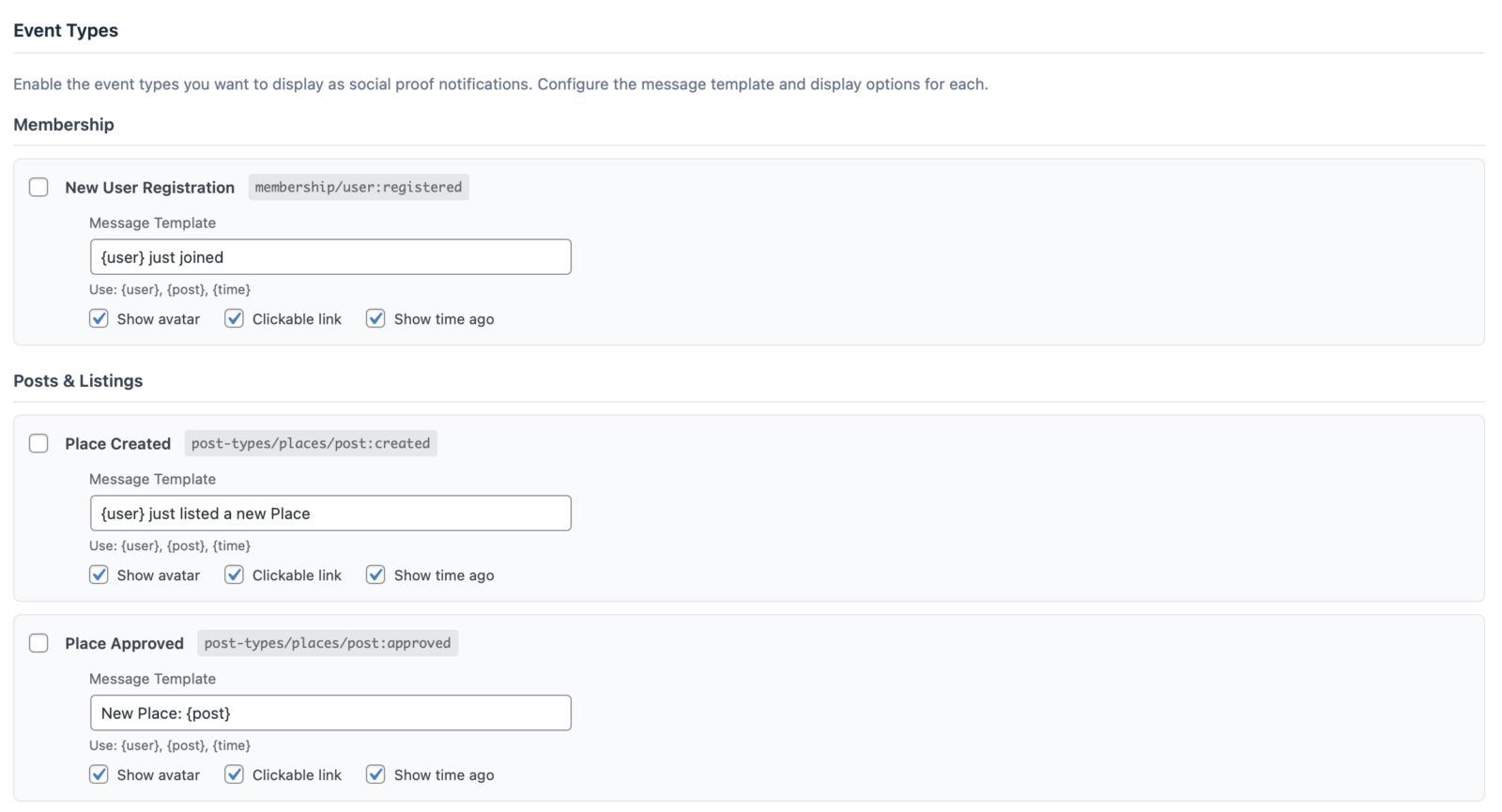
- Choose which event types to display
- Customize the message for each event type
- Set the display position (corner of screen)
- Adjust timing and animation settings
- Click Save Changes
Configuration Options
Display Settings
| Setting | Description | Default |
|---|---|---|
| Position | Corner of screen for notifications | Bottom Left |
| Display Duration | How long each notification shows (seconds) | 5 seconds |
| Delay Between | Time between notifications (seconds) | 10 seconds |
| Poll Interval | How often to check for new events (seconds) | 30 seconds |
| Animation | Slide in effect style | Slide Up |
Event Types
Enable or disable notifications for each type of Voxel event:
- Bookings – New booking reservations
- Orders – Product purchases
- Signups – New user registrations
- Reviews – New review submissions
- Posts – New listing submissions
Message Templates
Customize the notification text for each event type using placeholders:
| Placeholder | Description | Example Output |
|---|---|---|
{user} | Display name of the user | “John Smith” |
{post} | Title of the related post/listing | “Oceanview Hotel” |
{time} | Relative time since event | “5 minutes ago” |
Example Messages:
Bookings: {user} just booked {post}!
Reviews: {user} left a review on {post}
Signups: {user} joined {time}
Orders: Someone just purchased from {post}
Activity Boost Mode
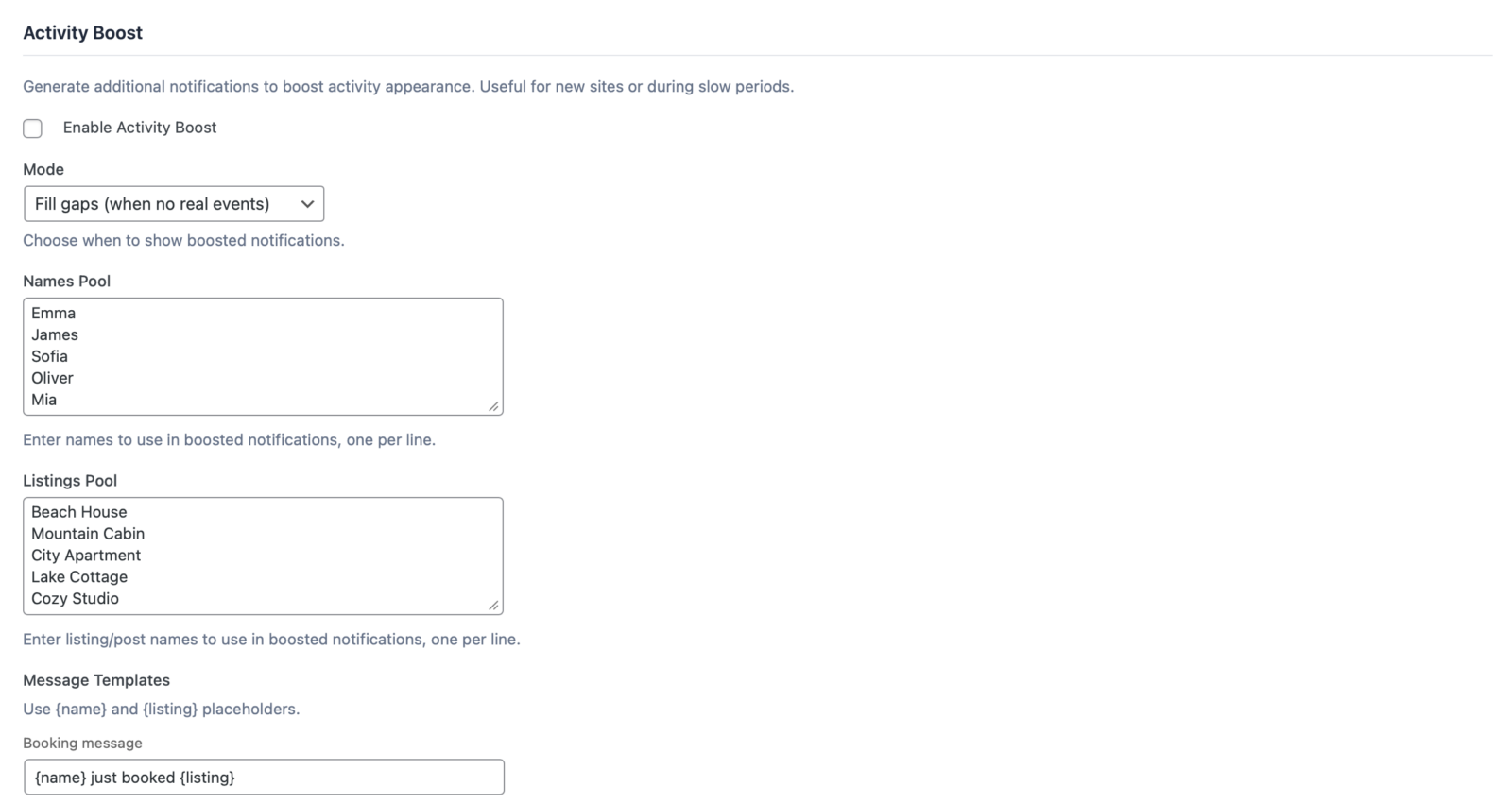
If your site doesn’t have enough recent activity to show notifications, Activity Boost can generate simulated notifications during slow periods. This keeps social proof visible while your site grows.
How It Works
- When no real events are available, simulated notifications display
- Uses realistic names and your actual listings
- Automatically disabled once you have enough real activity
Note
Activity Boost is meant as a temporary measure for new sites. Real social proof from actual users is always more effective.
Style Customization
Customize the appearance to match your site’s design:
Colors
- Background color
- Text color
- Time text color
- Border color
Avatar Settings
- Show/hide user avatar
- Avatar size
- Avatar border radius (square or round)
Animation Options
- Slide Up
- Slide Down
- Slide Left
- Slide Right
- Fade In
Live Preview
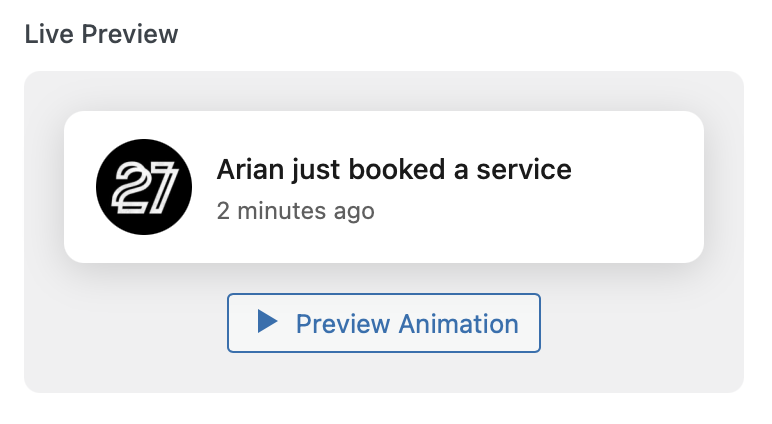
The settings panel includes a live preview that shows exactly how your notifications will look. Changes update in real-time as you adjust settings, so you can perfect the design before saving.
Use Cases
Booking Websites
Show “John just booked Seaside Villa” to create urgency and encourage bookings.
Directories
Display “New business listed: Joe’s Coffee Shop” to show an active community.
Marketplaces
Show recent purchases to build buyer confidence.
Review Sites
Display new reviews as they come in to show active engagement.
Troubleshooting
No Notifications Appearing
- Check that the function is enabled
- Verify at least one event type is enabled
- Ensure recent events exist in your Voxel app events
- Try enabling Activity Boost if no recent events
- Clear any caching plugins and refresh
Notifications Not Updating
- Wait for the poll interval to pass
- Check browser console for JavaScript errors
- Ensure AJAX requests aren’t being blocked
Styling Issues
- Check if theme CSS is overriding notification styles
- Use the live preview to verify settings are correct
- Try different positions if notifications are hidden