

Appearance
Checklist Field
The Checklist Field is a custom post field that allows users to create interactive checklists with items that can be checked off. Perfect for task lists, to-do items, requirements tracking, and progress monitoring.
Overview
This field type adds a new “Checklist” option when configuring post fields in Voxel. Users can create multiple checklist items, each with an optional title and description. Items can be reordered via drag-and-drop and checked off by authorized users.
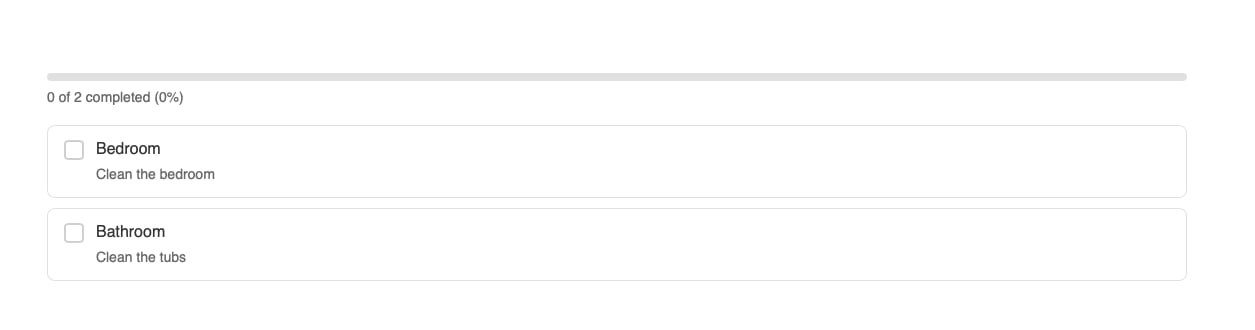
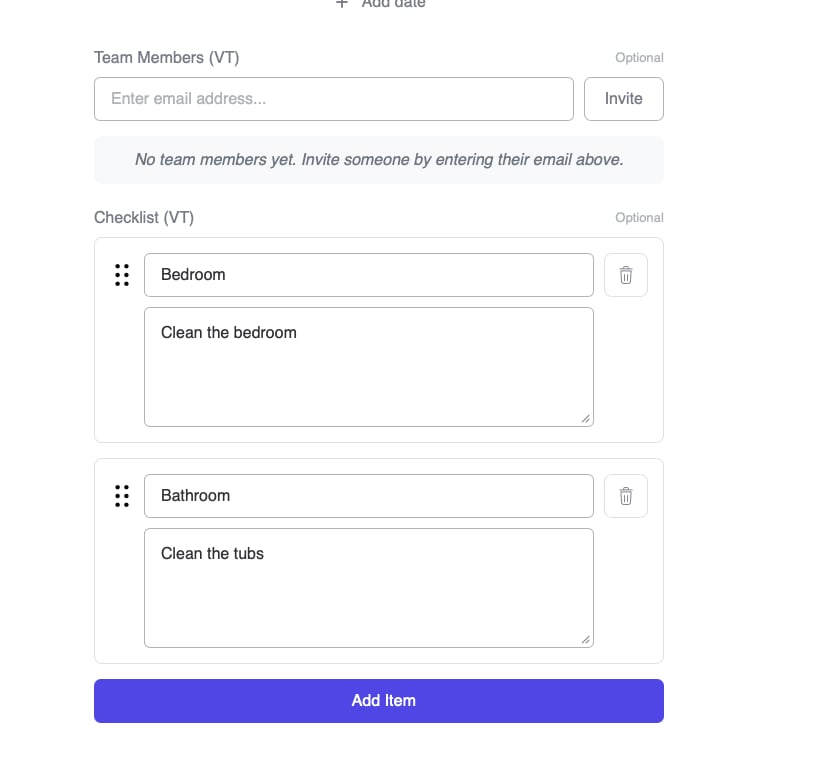
Key Features
- Create unlimited checklist items with titles and descriptions
- Drag-and-drop reordering of items
- Interactive checkbox toggle functionality
- Configurable permissions (author, logged-in users, everyone)
- App event integration for automation
- Dynamic tags for displaying checklist data
- Vue.js frontend and backend templates
- Checklist Display Widget for Elementor
Setup Instructions
Step 1: Enable the Field
- Navigate to Voxel Toolkit → Post Fields in your WordPress admin
- Find Checklist Field in the list
- Toggle the switch to enable
Step 2: Add Field to Post Type
- Go to Voxel → Post Types
- Select the post type to configure
- Navigate to Fields tab
- Click Add Field
- Select Checklist (VT)
- Configure field settings
- Save the post type
Field Configuration
| Setting | Description | Default |
|---|---|---|
| Label | Display name for the field | Checklist |
| Key | Unique identifier for the field | checklist |
| Description | Help text shown to users | Empty |
| Required | Whether at least one item is required | No |
| Toggle Permission | Who can check/uncheck items | Author only |
Toggle Permission Options
- Author only: Only the post author can toggle checkboxes
- Logged-in users: Any logged-in user can toggle items
- Everyone: All visitors (including guests) can toggle items
Checklist Display Widget
The Checklist Display Widget is an Elementor widget that renders checklist fields on the frontend with full interactive functionality and styling controls.
Widget Settings
| Setting | Description | Default |
|---|---|---|
| Checklist Field | Select which checklist field to display | First available |
| Hide If Empty | Don’t show widget if no items exist | No |
Styling Options
The widget includes comprehensive styling controls:
- Container: Background, padding, border, border radius
- Items: Background, padding, border, spacing between items
- Checkbox: Size, colors (unchecked, checked, hover states)
- Title: Color, typography, spacing
- Description: Color, typography
- Checked Items: Opacity, strikethrough effect
App Events
The Checklist Field registers app events that can trigger automations:
Checklist Item Toggled
Fires when a user checks or unchecks a checklist item.
Event Key: voxel_toolkit/checklist:item_toggled
Available Data:
- Post information
- User who toggled the item
- Item title and description
- New checked status
Dynamic Tags
Access checklist data through dynamic tags:
@post(field_key.total_count) – Total number of items@post(field_key.checked_count) – Number of checked items@post(field_key.unchecked_count) – Number of unchecked items@post(field_key.progress) – Completion percentage
Use Cases
Task Management
Create project tasks or to-do lists that team members can check off as they complete work.
Property Amenities
Use as a visual checklist of amenities or features included with a property listing.
Event Requirements
Track requirements or preparations for events, allowing organizers to mark items as complete.
Service Deliverables
Track deliverables for service-based businesses, letting clients see progress on their order.
Onboarding Checklists
Guide new users through onboarding steps they can check off as they complete each task.
Troubleshooting
Field Not Appearing in Post Type
- Verify the Checklist Field is enabled in Voxel Toolkit
- Clear any object caches
- Check that Voxel theme is active and up to date
Cannot Toggle Items
- Check the Toggle Permission setting on the field
- Verify you are logged in (if permission requires)
- Ensure JavaScript is enabled and no errors in console
Drag-and-Drop Not Working
- Ensure you are on the create/edit post form
- Check for JavaScript conflicts with other plugins
- Try a different browser to rule out browser-specific issues
Widget Not Showing Data
- Verify the correct checklist field is selected in widget settings
- Check that the post has checklist items added
- If “Hide If Empty” is enabled, add items to see the widget