

Appearance
External Link Warning
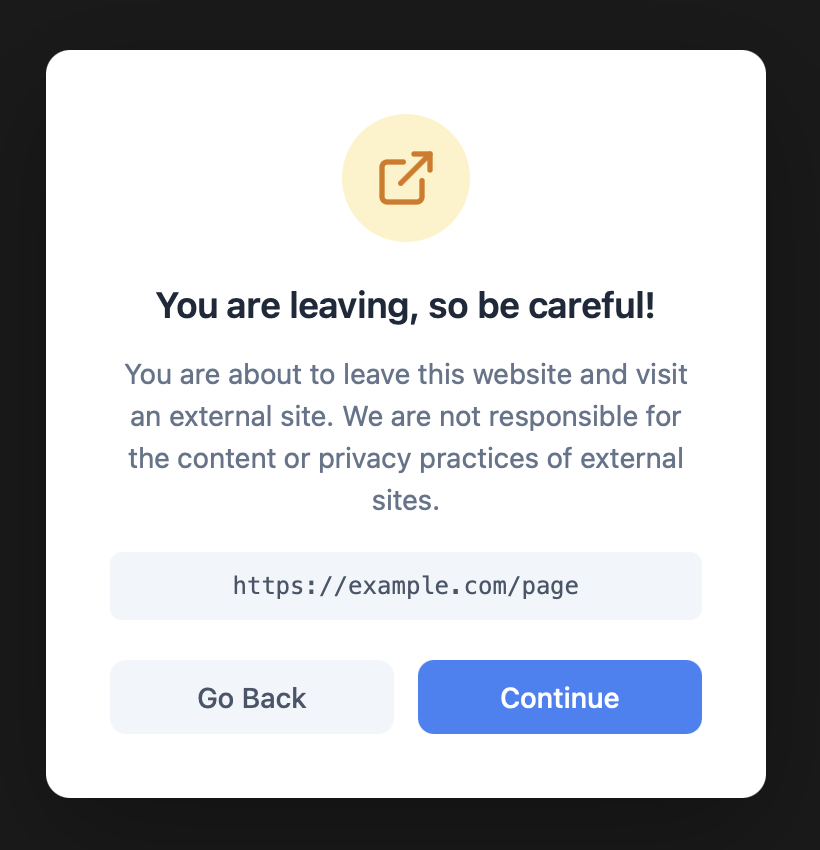
The External Link Warning function displays a confirmation modal when visitors click links that lead to external websites. This helps protect users from accidentally leaving your site and warns them about potentially untrusted destinations.
Overview
When a visitor clicks a link to an external website, a warning modal appears asking them to confirm they want to leave. This is especially useful for directories and marketplaces where listings may contain user-submitted links that you can’t fully verify.
Key Features
- Customizable warning title and message
- Domain whitelist to bypass trusted sites
- CSS selector exclusions for specific links
- Option to show the destination URL
- Full color customization
- Live preview in settings
Setup Instructions
Step 1: Enable the Function
- Navigate to Voxel Toolkit → Functions in your WordPress admin
- Find External Link Warning in the list
- Toggle the switch to enable the function
Step 2: Configure Settings
After enabling, click the settings icon to customize:
- Enter your warning title and message
- Add any trusted domains to the whitelist
- Customize colors to match your site
- Click Save Changes
Configuration Options
Content Settings
| Setting | Description | Default |
|---|---|---|
| Warning Title | Modal heading text | “You’re leaving our site” |
| Warning Message | Explanation text in the modal | “You’re about to visit an external website…” |
| Show URL | Display the destination URL in the modal | Yes |
| Continue Button | Text for the proceed button | “Continue” |
| Cancel Button | Text for the stay button | “Go Back” |
Domain Whitelist
Add trusted domains that should NOT trigger the warning. Enter one domain per line without http:// or https://.
google.com
facebook.com
instagram.com
twitter.com
youtube.com
Links to these domains will open directly without showing the warning modal.
CSS Selector Exclusions
Exclude specific links based on their CSS class or selector. Enter one selector per line.
.no-warning
.trusted-link
#partner-links a
.sponsor-banner a
Any link matching these selectors will bypass the warning.
Color Customization
Customize every aspect of the modal’s appearance:
Modal Colors
- Background color
- Title text color
- Message text color
- URL text color
- Overlay (backdrop) color
Icon Colors
- Warning icon color
- Icon background color
Button Colors
- Continue button background
- Continue button text
- Cancel button background
- Cancel button text
How It Works
- Visitor clicks an external link
- JavaScript checks if the domain is whitelisted
- JavaScript checks if the link matches any exclusion selector
- If not excluded, the warning modal appears
- User clicks Continue to proceed or Cancel to stay
Internal links (same domain) are never affected and work normally.
Use Cases
Directory Listings
Warn users before visiting external business websites submitted by listing owners.
Marketplace Protection
Alert buyers when clicking links in seller descriptions that lead off-platform.
Community Sites
Protect users from clicking suspicious links in user-generated content.
Affiliate Disclosure
Use as a disclosure mechanism when linking to affiliate or partner sites.
Troubleshooting
Warning Not Appearing
- Check that the function is enabled
- Verify the link is actually external (different domain)
- Check if the domain is in your whitelist
- Check if the link matches any exclusion selector
- Clear browser cache and try again
Warning Appearing on Internal Links
- This should not happen – internal links are automatically excluded
- Check if you have multiple domains pointing to the same site
- Add any alternate domains to the whitelist
Modal Styling Issues
- Check if theme CSS is overriding modal styles
- Use the live preview to verify color settings
- Check browser console for CSS conflicts