

Appearance
Coupon Manager Widget
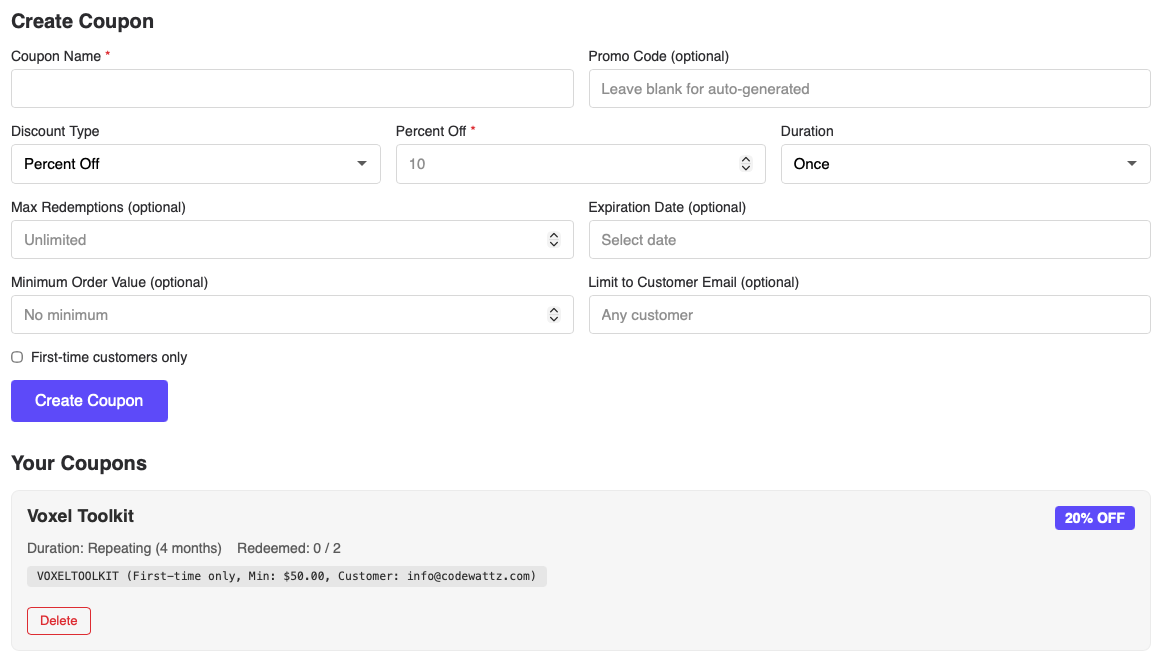
The Coupon Manager widget enables users to create and manage Stripe discount coupons directly from the frontend. Perfect for vendors, store owners, and marketplace sellers who need to offer promotional discounts to their customers.
Overview
This Elementor widget integrates with Stripe’s coupon system to allow logged-in users to create, view, and delete discount codes. Coupons are created directly in Stripe and can be used at checkout for products and services on your Voxel site.
Key Features
- Create percent-off or fixed-amount discounts
- Set coupon duration (once, repeating, forever)
- Configure maximum redemptions and expiration dates
- Set minimum order value requirements
- Restrict to specific customer emails
- First-time customer only option
- Custom or auto-generated promo codes
- View all created coupons with redemption statistics
- Delete coupons when no longer needed
- Full styling controls in Elementor
Requirements
Before using the Coupon Manager widget, ensure the following:
- Stripe must be configured as your payment provider in Voxel
- Users must be logged in to create and manage coupons
- Valid Stripe API keys configured in Voxel settings
Setup Instructions
Step 1: Enable the Widget
- Navigate to Voxel Toolkit → Widgets in your WordPress admin
- Find Coupon Manager in the list
- Toggle the switch to enable the widget
Step 2: Add Widget to Page
- Edit your page or template in Elementor
- Search for Coupon Manager (VT)
- Drag the widget to your desired location
- Configure display options and styling
- Save the page
Widget Settings
Content Settings
| Setting | Description | Default |
|---|---|---|
| Form Heading | Heading displayed above the create form | “Create Coupon” |
| List Heading | Heading displayed above the coupon list | “Your Coupons” |
| Submit Button Text | Text on the form submit button | “Create Coupon” |
| Show Create Form | Toggle visibility of the creation form | Yes |
| Show Coupon List | Toggle visibility of existing coupons list | Yes |
| Login Required Message | Message shown to logged-out users | “Please log in to manage coupons.” |
| Stripe Not Enabled Message | Message when Stripe is not configured | “Stripe payment gateway must be enabled…” |
Coupon Form Fields
| Field | Description | Required |
|---|---|---|
| Coupon Name | Internal name for the coupon | Yes |
| Promo Code | Customer-facing code (auto-generated if empty) | No |
| Discount Type | Percent Off or Fixed Amount | Yes |
| Percent Off | Percentage discount (1-100) | If percent type |
| Amount Off | Fixed amount in currency | If fixed type |
| Duration | Once, Repeating, or Forever | Yes |
| Duration Months | Number of months (for repeating) | If repeating |
| Max Redemptions | Total times coupon can be used | No (unlimited) |
| Expiration Date | Date when coupon becomes invalid | No |
| Minimum Order Value | Minimum cart total required | No |
| Customer Email | Restrict to specific customer | No |
| First-time Only | Only for first-time customers | No |
Use Cases
Marketplace Vendors
Allow vendors to create promotional codes for their products to boost sales and attract new customers.
Subscription Services
Offer recurring discounts for subscription-based products using the “repeating” or “forever” duration options.
Loyalty Programs
Create exclusive discount codes for loyal customers by restricting coupons to specific email addresses.
New Customer Acquisition
Use the “first-time customers only” option to offer special discounts to attract new buyers.
Troubleshooting
Widget Shows “Stripe Not Enabled”
- Verify Stripe is selected as the payment provider in Voxel settings
- Check that Stripe API keys are properly configured
- Ensure Stripe account is active and verified
Coupon Creation Fails
- Ensure all required fields are filled
- Check that percentage is between 1-100
- Verify expiration date is in the future
- Check browser console for JavaScript errors
Coupons Not Loading
- Verify AJAX is working properly on your site
- Clear any caching plugins
- Check for JavaScript conflicts
Requirements
- Stripe configured as payment provider
- User must be logged in to use the widget