

Appearance
Ticket Product Form Widget
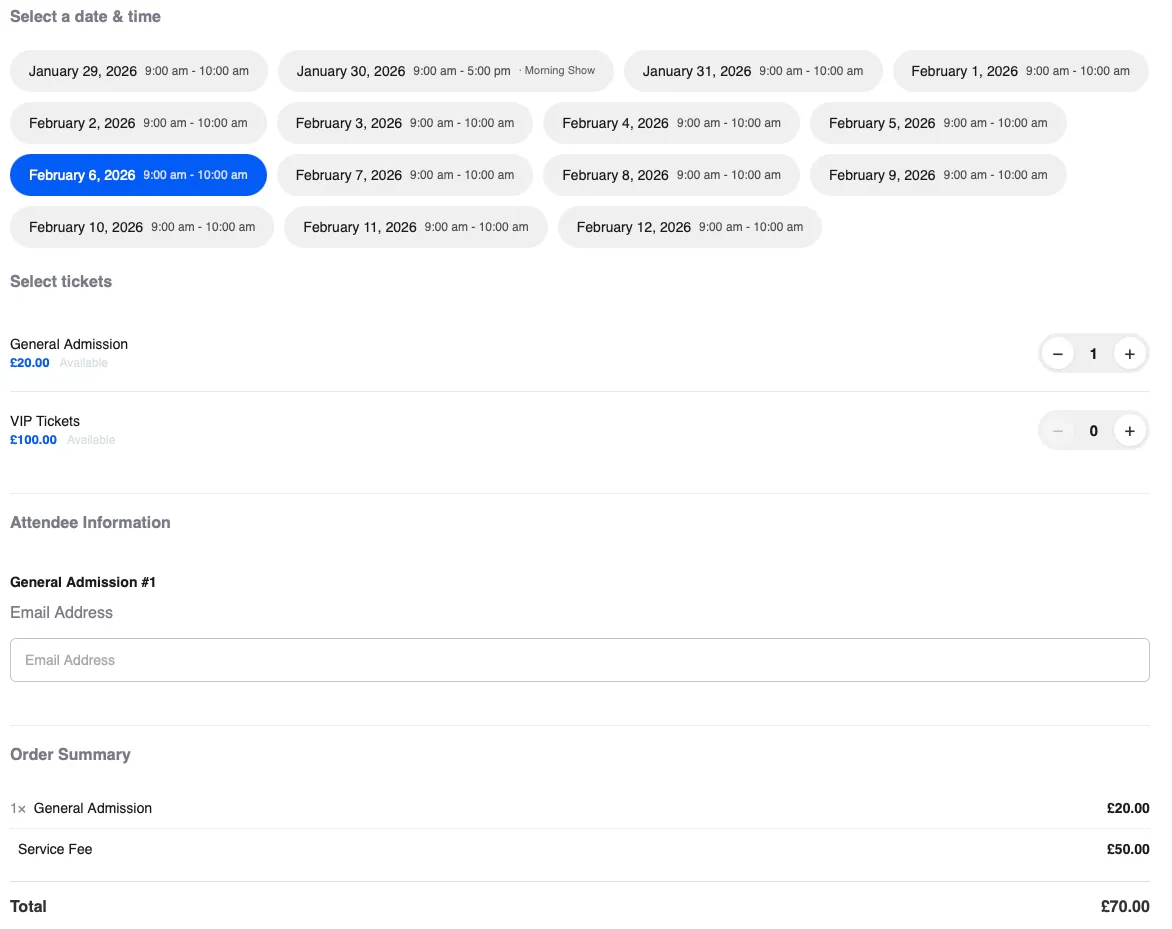
The Ticket Product Form widget displays your ticket purchasing interface to customers. This is the main widget where visitors select tickets, choose time slots, enter attendee information, and complete their purchase.
Adding the Widget
- Edit your single event template in Elementor
- Search for Ticket Product Form in the widget panel
- Drag the widget onto your page where you want the ticket form to appear
- The widget will automatically display tickets for the current event
Widget Sections
The ticket form has several sections that customers interact with:
Time Slot Selection
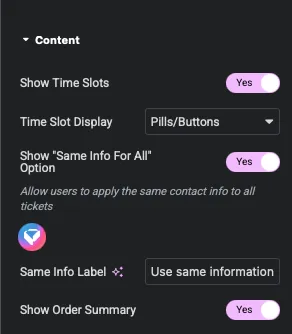
If your event has multiple time slots, customers will see options to choose their preferred time. You can control how these appear:
- Pills/Buttons: Clickable buttons showing each time option
- Dropdown: A compact dropdown menu
- Radio Buttons: Traditional radio button list
Ticket Selection
Displays all available ticket types with:
- Ticket name and description
- Price per ticket
- Quantity selector
- Remaining availability (optional)
Attendee Information
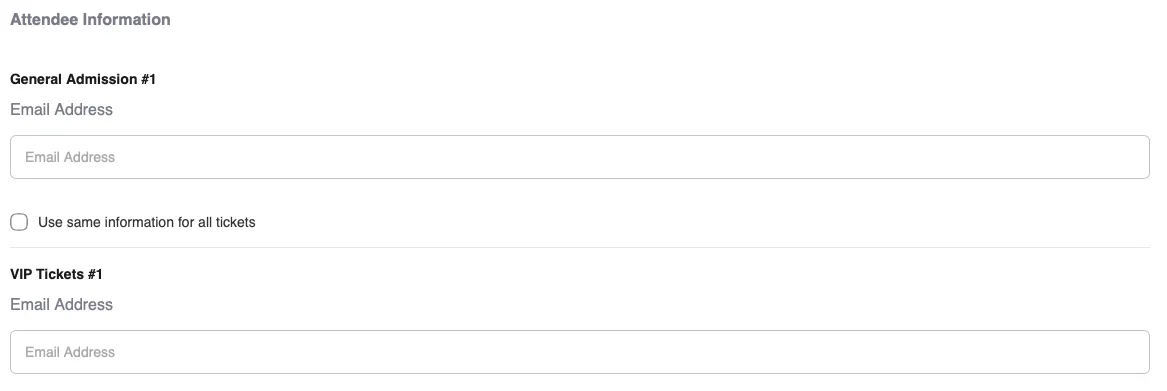
After selecting tickets, customers enter information for each attendee:
- Name, email, phone (if required)
- Any custom fields you’ve configured (dietary restrictions, t-shirt size, etc.)

Same Info For All
If a customer buys multiple tickets, they can check “Same info for all tickets” to copy the first attendee’s information to all tickets. This saves time for group purchases.
Order Summary
Shows a running total including:
- Each ticket type and quantity
- Per-ticket prices
- Service fees (if enabled)
- Total amount
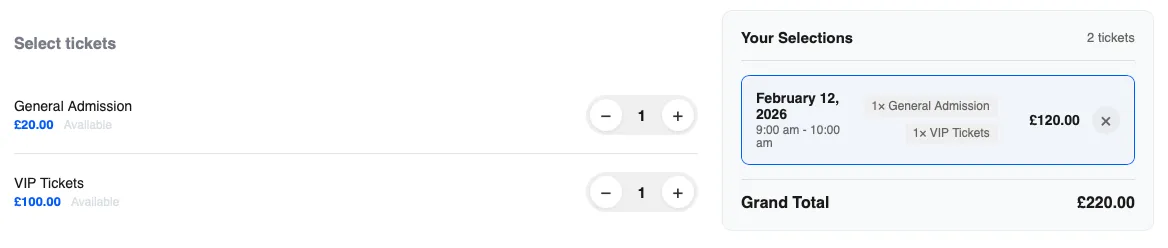
Your Selections Panel
This floating panel shows customers what they’ve selected as they scroll through the form.
Panel Settings
- Show/Hide Toggle: Enable or disable the panel entirely
- Position: Choose where the panel appears
- Above form: Panel sits above the ticket form
- Beside form: Panel floats to the side (desktop only)
Panel Content
The panel displays:
- Selected time slot
- Ticket quantities
- Running total
- “Add to Cart” or “Buy Now” button
Troubleshooting
Widget shows “No tickets available”
- Check that your event has a product field configured
- Verify ticket types are added to the product
- Make sure event dates haven’t passed
Time slots not appearing
- Confirm your recurring date field has dates entered
- Check that time slots are configured in the product settings
- Verify the date source is connected in product field settings
Attendee fields not showing
- Make sure attendee fields are configured in your ticket settings
- Check that at least one ticket is selected (fields appear after selection)
Styling not applying
- Clear your browser cache
- Check for CSS conflicts with your theme
- Make sure you’re editing the correct template in Elementor