

Appearance
Event Time Slots
Time slots let you offer tickets for specific dates and times. Whether your event has a single showing, multiple sessions per day, or spans several days, time slots give you control over scheduling and capacity.
Understanding Time Slots
What Are Time Slots?
Time slots are specific date/time combinations when your event occurs. Examples:
- A concert on Saturday at 8pm
- Morning and afternoon museum sessions
- A 3-day festival with daily admission
- Weekly classes every Tuesday
Why Use Time Slots?
- Separate capacity for each session
- Different pricing for matinee vs. evening shows
- Clear scheduling for multi-day events
- Better planning for you and attendees
Before You Begin
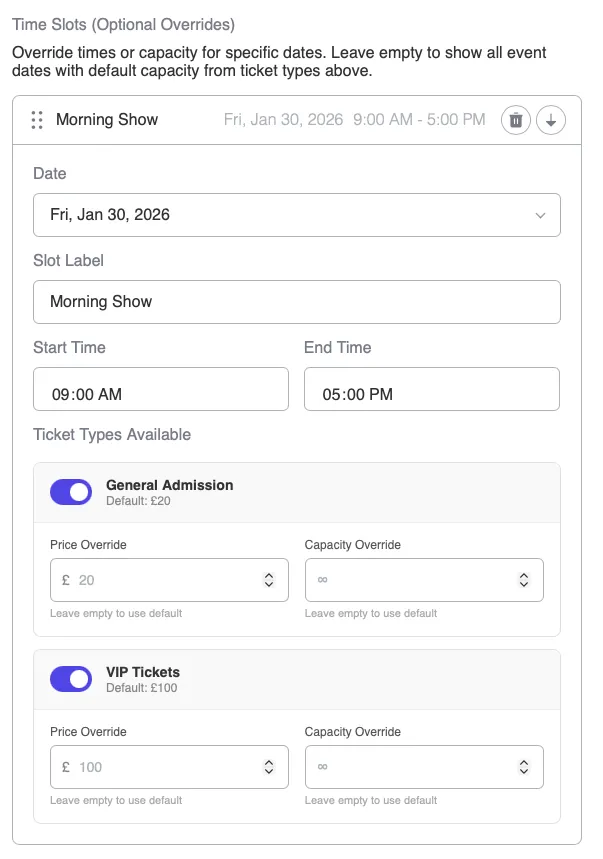
The Time Slots section is hidden by default
Since version 1.1.0 the Time Slots (Optional Overrides) section is hidden in the create-event form to keep it streamlined. If you don't see it, turn it on under Event Tickets → Settings → Create Event Form → Time Slots Section.
This is display-only — any time slots saved previously are preserved and still work, they're just not editable until the section is shown. See Settings.
Make sure you have:
- A post type with a product field set to Voxel Events type
- A recurring date field connected as the date source
- Your event dates added to the recurring date field
- The Time Slots Section enabled in Settings, per the note above
See Installation & Setup if you haven't set these up.
Adding Time Slots
Step 1: Open Your Event
- Edit your event post
- Find and open the product/tickets field
- Look for the Time Slots section
Step 2: Create a Time Slot
Click Add Time Slot to create a new slot.
Step 3: Configure the Slot
Slot Label
Give the slot a clear name that attendees will see:
- “Saturday Evening Show”
- “Morning Session (9am – 12pm)”
- “Day 1 – Friday”
- “VIP Early Entry”
Date Selection
Choose which date this slot applies to:
- Select from dates in your recurring date field
- Or choose “All Dates” if the slot repeats
Time (Optional)
Add specific times:
- Start time
- End time
- Or leave blank for all-day events
Capacity
Set how many total tickets can be sold for this slot:
- Enter a number for limited capacity
- Enter 0 for unlimited
Time Slot Examples
Single Event, One Time
A concert with one showing:
| Label | Date | Time | Capacity |
|---|---|---|---|
| General Admission | March 15, 2024 | 8:00 PM | 500 |
Customers see: One option, simple purchase flow.
Multiple Sessions Per Day
A museum with timed entry:
| Label | Date | Time | Capacity |
|---|---|---|---|
| Morning Entry | March 15, 2024 | 9:00 AM – 12:00 PM | 100 |
| Afternoon Entry | March 15, 2024 | 1:00 PM – 5:00 PM | 100 |
| Evening Entry | March 15, 2024 | 6:00 PM – 9:00 PM | 75 |
Customers see: Three time options to choose from.
Multi-Day Festival
A weekend festival:
| Label | Date | Capacity |
|---|---|---|
| Friday | March 15, 2024 | 1000 |
| Saturday | March 16, 2024 | 1500 |
| Sunday | March 17, 2024 | 1200 |
Recurring Class
A weekly yoga class:
| Label | Date | Time | Capacity |
|---|---|---|---|
| March 5 Class | March 5, 2024 | 6:00 PM | 20 |
| March 12 Class | March 12, 2024 | 6:00 PM | 20 |
| March 19 Class | March 19, 2024 | 6:00 PM | 20 |
| March 26 Class | March 26, 2024 | 6:00 PM | 20 |
Customers see: Individual class dates to book.
Per-Slot Ticket Overrides
You can customize ticket types for specific time slots.
Different Prices Per Slot
Charge more for popular times:
Saturday Matinee
- GA: $25
- VIP: $50
Saturday Evening
- GA: $35 (premium pricing)
- VIP: $75
Different Capacity Per Slot
Limit certain tickets for specific times:
Morning Session
- GA: 100 available
- VIP: 20 available
Afternoon Session
- GA: 150 available
- VIP: 10 available
Slot-Specific Ticket Types
Some tickets only available for certain slots:
Friday
- GA only
Saturday
- GA
- VIP
- Meet & Greet (Saturday exclusive)
Setting Up Slot Overrides
Step 1: Open Time Slot Settings
- In your ticket configuration, find the time slot
- Click to expand its settings
Step 2: Add Ticket Override
- Click Add Ticket Override
- Select which ticket type to customize
- Set the custom price (or leave blank to use default)
- Set the custom capacity (or leave blank for unlimited)
Step 3: Save
Make sure to save your event after configuring overrides.
Display Options
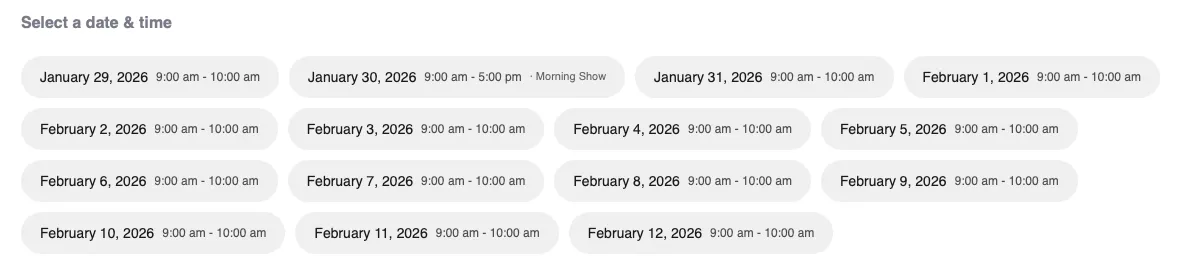
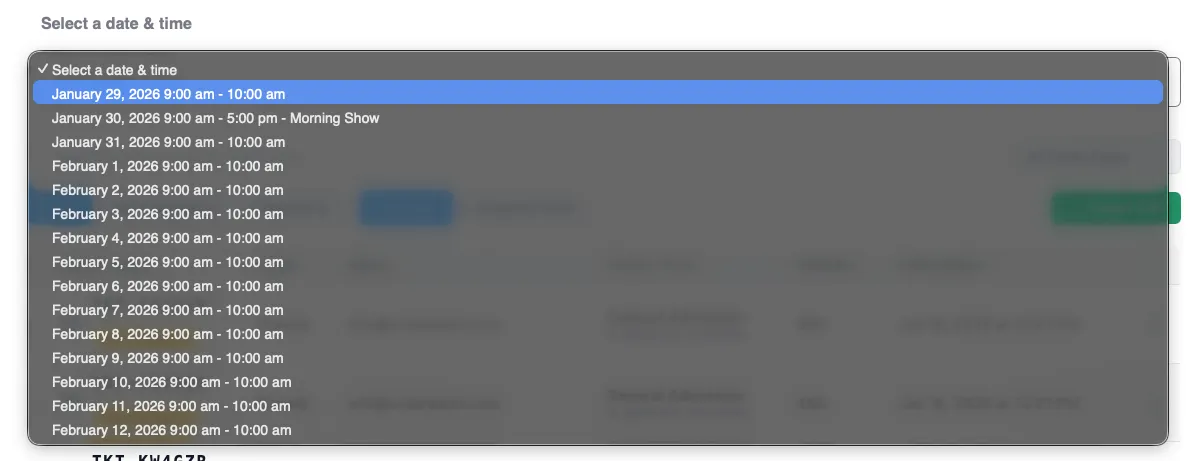
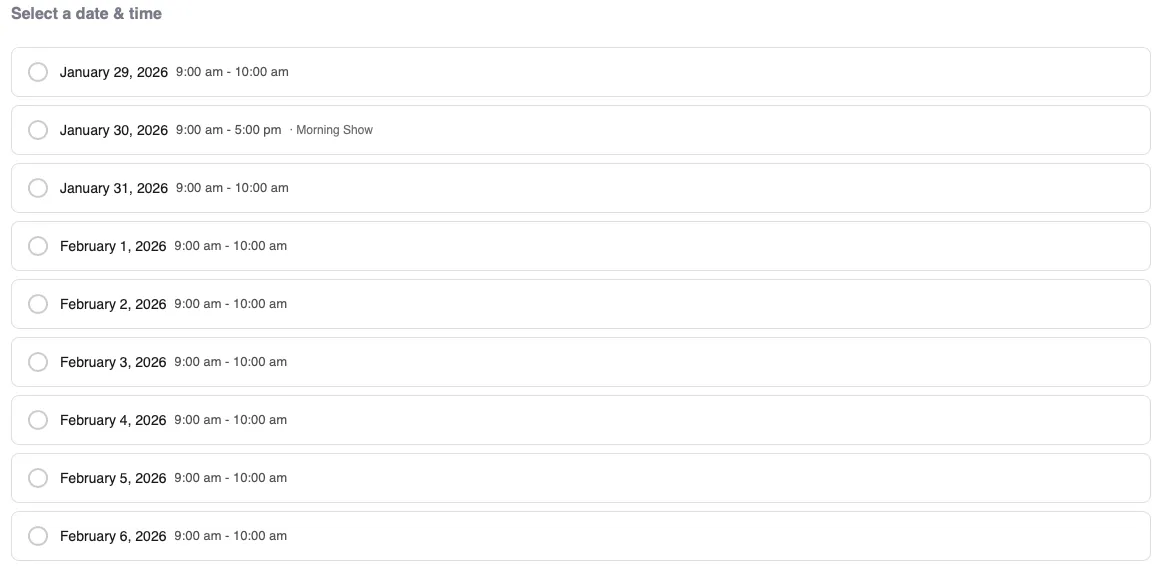
Control how time slots appear to customers in the Ticket Product Form widget:
Pills/Buttons
Time slots show as clickable buttons. Best for: Few options (2-6 slots)
Dropdown
Time slots in a dropdown menu. Best for: Many options or long labels
Radio Buttons
Traditional radio button list. Best for: When you want descriptions visible
Capacity Management
How Capacity Works
When you set capacity on a time slot:
- The number represents total tickets available
- Each purchase reduces available count
- When capacity is reached, the slot shows “Sold Out”
- Cart reservations temporarily hold tickets
Combined Capacity
If you have ticket types with their own limits:
- Slot capacity: 100 total
- GA capacity: 80
- VIP capacity: 20
Sales stop when either limit is reached.
Unlimited Capacity
Set capacity to 0 (zero) for unlimited tickets:
- No sold out state
- Good for virtual events
- Good for very large venues
Mark a Date as Sold Out
Capacity isn't the only way to close sales. The date override editor has a per-ticket-type Mark as sold out toggle — useful when a session is full for a reason the capacity number doesn't capture, such as a private booking or a venue change.
When enabled, that ticket type shows as Sold Out for that date and cannot be purchased.
Sold out beats capacity
The toggle takes precedence over the capacity value — including unlimited capacity (0). Turning it off restores whatever capacity was already configured; no ticket data is changed either way.
This toggle lives in the Time Slots section, so it needs Time Slots Section enabled under Settings.
Stopping Sales Before the Event Starts
Separately from capacity, each event has a Sales Cutoff — how many minutes before the event's start time ticket sales should stop.
- Set it on the event itself, in the tickets field, above Ticket Types
- Enter
0to sell right up to the start time - The cutoff is enforced both in the front-end slot picker and at purchase validation, so it can't be bypassed by a stale page
Use it to give yourself time to print a door list, or to stop last-minute sales for events that need a headcount in advance.
Tips for Time Slots
Naming Conventions
Use clear, consistent names:
Good:
- “Saturday, March 15 – 2:00 PM”
- “Morning Session (9am-12pm)”
- “Day 1 – VIP Early Access”
Avoid:
- “Slot 1”
- “Session A”
- Inconsistent formatting
Buffer Time
Leave gaps between sessions for:
- Cleanup
- Setup for next group
- Attendee flow management
Overbooking Prevention
If you need to reserve seats:
- Set capacity slightly below actual venue capacity
- Account for staff and VIP reserved seats
- Leave room for day-of adjustments
Troubleshooting
Time slots not appearing
- Make sure dates are in your recurring date field
- Verify date source is connected in product field settings
- Check that time slots are published (not draft)
Wrong dates showing
- Edit your recurring date field
- Add or update the correct dates
- Time slots pull from the recurring date field
Capacity showing incorrectly
- Refresh the event edit page
- Check for cart reservations holding tickets
- Verify no conflicting capacity limits
Can’t add more slots
- Some themes limit time slots
- Try removing unused slots first
- Contact support if limit seems too low