

Appearance
Sold Tickets Widget
The Sold Tickets widget lets you view and manage all ticket sales for your events. See who bought tickets, check attendance status, and export data for your records.
Adding the Widget
- Create or edit a page where you want to display ticket sales (like a dashboard)
- Edit with Elementor
- Search for Sold Tickets in the widget panel
- Drag the widget onto your page
- Configure the settings
- Publish the page
Who Can View Sold Tickets
- Event authors: See tickets for events they created
- Site administrators: See tickets for all events
Widget Views
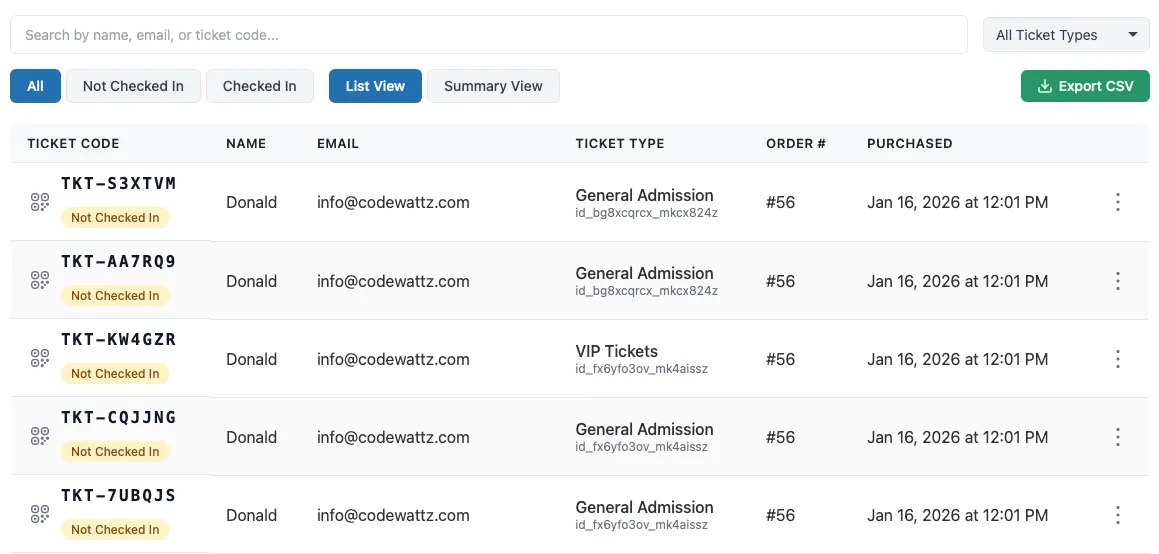
Ticket List View
Shows individual tickets with:
- Attendee name and email
- Ticket type (GA, VIP, etc.)
- Time slot (if applicable)
- Purchase date
- Ticket code
- Check-in status
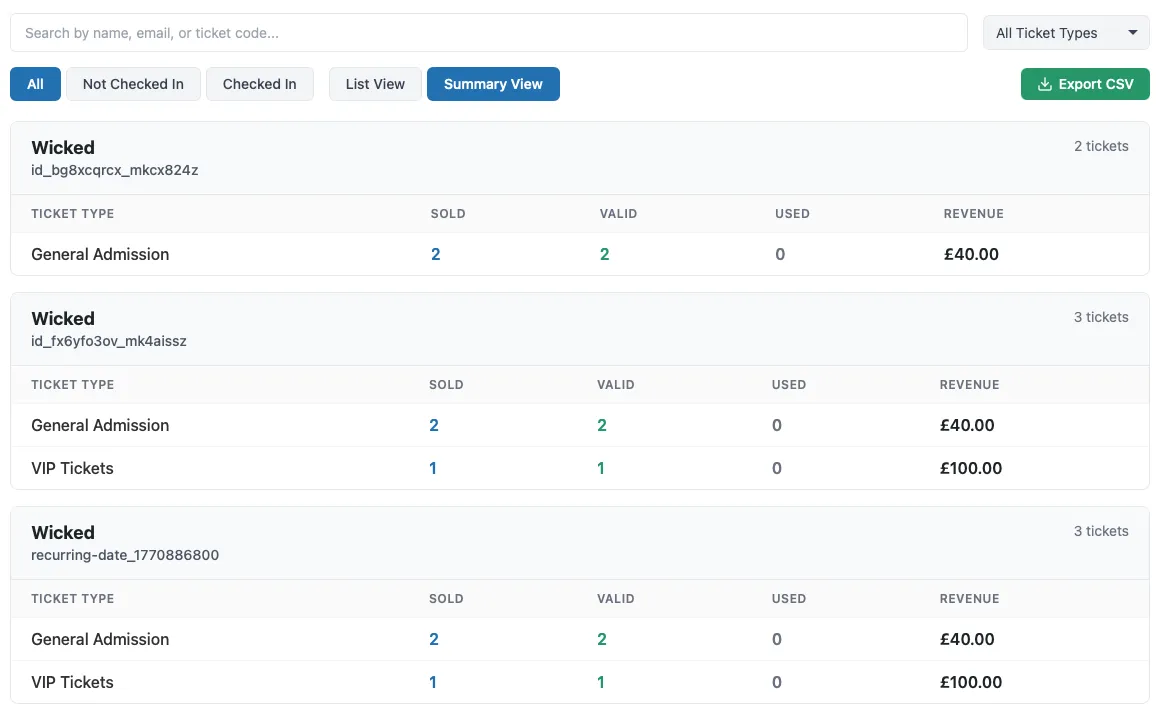
Per-Day Summary View
Aggregates sales by date showing:
- Date
- Total tickets sold
- Tickets by type
- Revenue
- Check-in count
Filtering Tickets
By Event
If you have multiple events, filter to see tickets for:
- A specific event
- All events
- Upcoming events only
- Past events only
By Date/Time Slot
For events with multiple sessions:
- Filter by specific date
- Filter by time slot
- View all dates together
By Ticket Type
See only certain ticket types:
- General Admission
- VIP
- Early Bird
- Or any custom types you’ve created
By Check-in Status
- All tickets: See everything
- Checked in: Only attendees who arrived
- Not checked in: Attendees who haven’t arrived yet
By Search
Search for specific attendees by:
- Name
- Ticket code
- Phone number

Managing Tickets
View Ticket Details
Click on any ticket to see:
- Full attendee information
- Custom field responses
- Purchase details
- Check-in history
- QR code
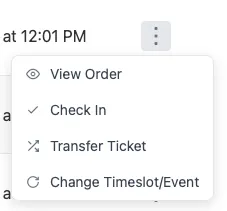
Manual Check-in
From the ticket list, you can:
- Find the ticket
- Click the check-in toggle
- The ticket is marked as checked in
This is useful for:
- Backdoor or VIP entrances
- Fixing missed scans
- Special circumstances
View Order
Click through to see the full order including:
- All tickets in the purchase
- Payment information
- Buyer contact details
Exporting Data
CSV Export
Export your ticket data to a spreadsheet:
- Apply any filters you want
- Click Export CSV
- Download the file
- Open in Excel, Google Sheets, or Numbers
What’s Included
The export contains:
- Attendee names and emails
- Ticket types and codes
- Time slots
- Check-in status and times
- Custom field responses
- Purchase dates
Uses for Exports
- Create name badges
- Build attendee contact lists
- Analyze sales data
- Share with venue or vendors
- Keep records for accounting
Widget Settings
Event Source
- Current Post: Show tickets for the current event page
- Specific Event: Select a particular event
- All Author Events: Show all events by the logged-in user
Default View
- List View: Individual ticket rows
- Summary View: Aggregated by date
Visible Columns
Choose which columns appear:
- Attendee name
- Phone
- Ticket type
- Time slot
- Purchase date
- Ticket code
- Check-in status
- QR code
Pagination
- Tickets per page: How many to show at once (10, 25, 50, 100)
- Navigation style: Numbered pages or load more button
Understanding the Data
Ticket Statuses
- Active: Valid ticket, not yet checked in
- Checked In: Attendee has arrived
- Cancelled: Ticket was refunded or cancelled
- Transferred: Ticket was transferred to another person
Check-in Information
When a ticket is checked in, you’ll see:
- Time of check-in
- Who performed the check-in
- Which device was used (if tracked)
Purchase vs. Event Date
- Purchase date: When the ticket was bought
- Event date: When the event takes place
- These can be weeks or months apart
Common Tasks
Find a Specific Attendee
- Use the search box
- Type name, email, or ticket code
- View results immediately
See Who Hasn’t Arrived
- Set check-in filter to “Not checked in”
- View list of no-shows
- Export for follow-up
Check Today’s Sales
- Set date filter to today
- View new purchases
- Track sales progress
Prepare for Event Day
- Export full attendee list
- Print backup copies
- Note any special requests in custom fields
Troubleshooting
No tickets showing
- Check that you’re viewing the correct event
- Verify you have permission to see ticket sales
- Make sure tickets have actually been sold
- Try clearing filters
Export not downloading
- Check your browser’s download settings
- Try a different browser
- Make sure pop-ups aren’t blocked
- Clear browser cache
Data looks outdated
- Refresh the page
- Clear your browser cache
- Check if the page is caching (contact your host)
Can’t see check-in status
- Make sure the check-in column is enabled
- Refresh to get latest data
- Check that check-ins are happening on the same event